 Lumar
LumarManual
Using Lumar
Lumar is made to pick up and shoot. There’s a lot packed in underneath, and this guide shows you how to get the most from it: the lenses, the depth effect, the styles and filters, and the settings that fine-tune them. New here? Start with Quick Start.
Quick Start
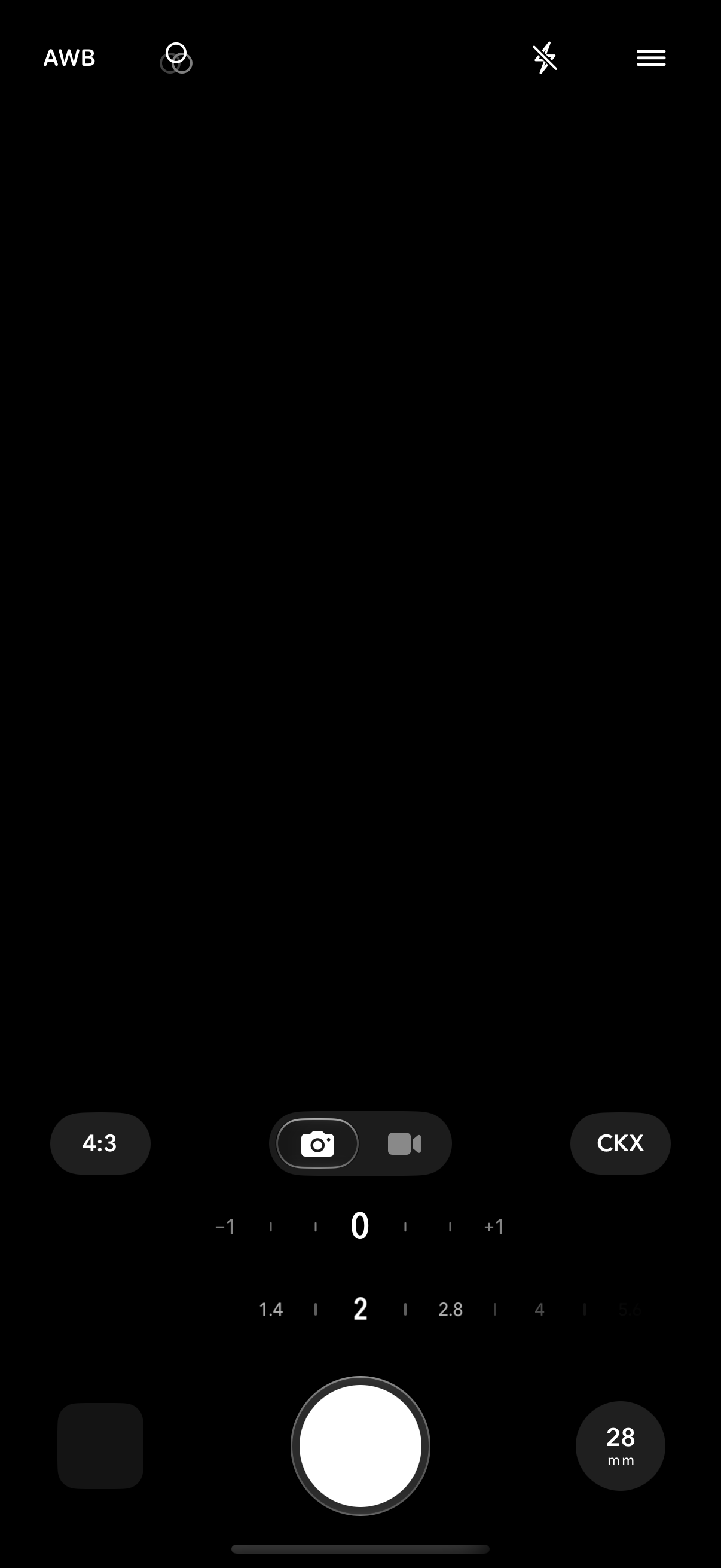
- White balance. Tap for the presets. Double-tap to go back to AWB. More
- Filter. Tap to choose a lens filter. Hold to turn it off, or back on. More
- Flash. Tap for Off, Auto or On. Hold for the self-timer. More
- Settings. Everything else. More
- Aspect ratio. The shape of the picture. More
- Photo or Video. More
- Style. Tap to open Styles. More
- Exposure. Drag to brighten or darken. Double-tap for 0. More
- Aperture. Drag to soften the background or keep it sharp. More
- Your last photo. Tap to see it and edit it. More
- Shutter. Or press a volume button. More
- Lens. Tap for the lens panel, swipe up or down to change lens, hold for the front camera. More
Choose a lens
Swipe the lens button, or tap it and pick a focal length.
LensesSet the aperture
Drag the aperture dial. Low numbers soften the background.
DepthPick a style
Open Styles and tap one. The viewfinder shows it live.
StylesShoot
Press the shutter, either volume button or the Camera Control.
Taking photos
Nothing in the manual matches that search.
Getting started#
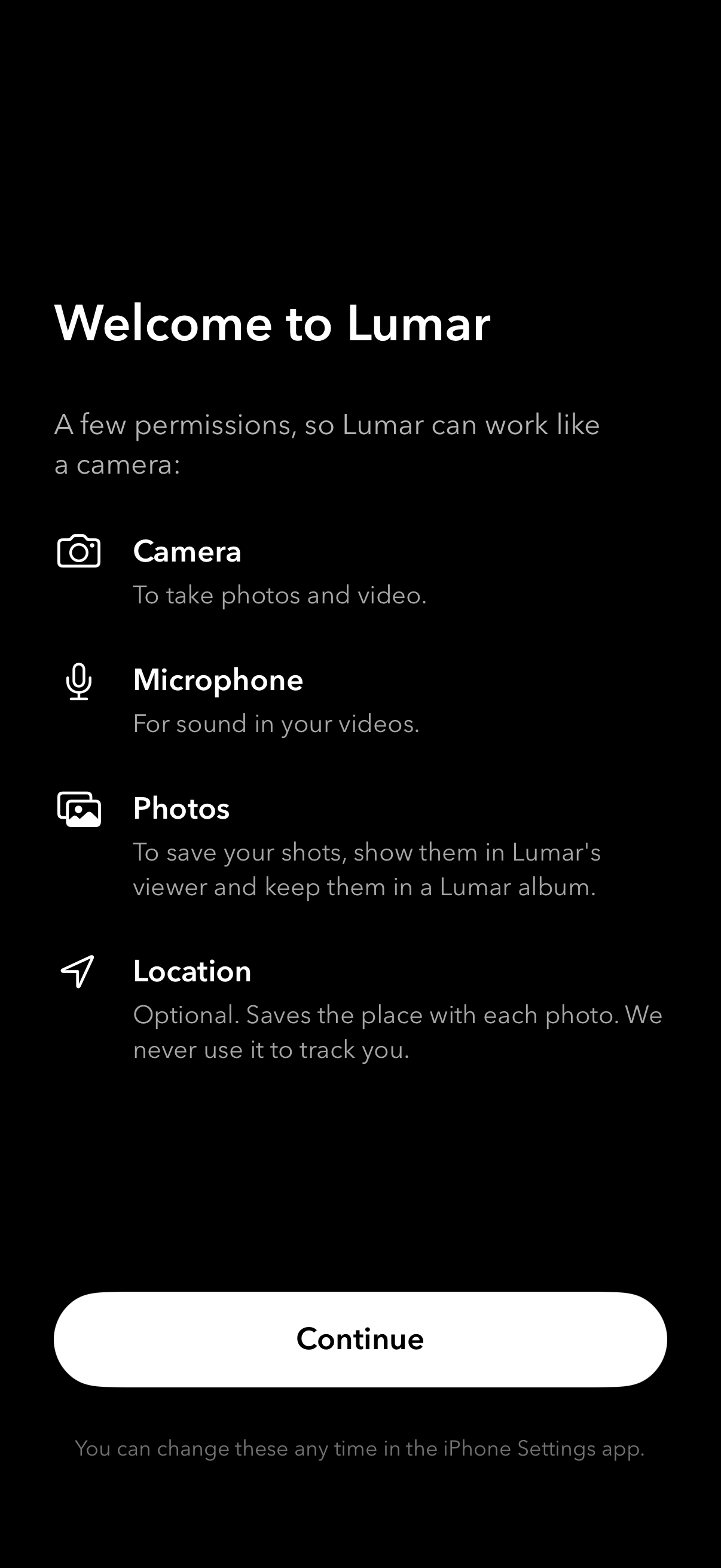
Lumar needs iOS 17 or later. The first time it opens, it asks for a few permissions so it can work like a camera:
welcome.png
widget.png

| Permission | Why Lumar asks |
|---|---|
| Camera | To make photographs and videos. |
| Microphone | To record sound with video. |
| Photos | To save what you shoot, show it in the app, and reopen a Lumar photo for editing. |
| Location | Optional. Saves the place and the city or town with each photograph. |
You can change any of these later in the iPhone Settings app, under Lumar.
The Lock Screen widget
The Lumar Launcher widget opens Lumar directly to the camera. Touch and hold the Lock Screen, tap Customize, choose the Lock Screen, tap the space under the clock and add Lumar from the widget list.
The Action button and Control Center
On iOS 18 and later, Lumar also has a control called Lumar Camera. To open Lumar with the Action button, open the iPhone Settings app, tap Action Button, swipe to Controls, tap the control shown, and choose Lumar Camera. The same control can be added to Control Center, or to the bottom of the Lock Screen in place of the camera or flashlight.
Taking photos#
Frame the picture, tap where you want focus, and take the picture with any of these:
- The shutter button on screen.
- Either volume button, which is steadier when the phone is held sideways.
- The Camera Control, on iPhone 16 and later.
- The Action button, once it is set to Lumar Camera (see above). Pressed while Lumar is open, it takes the picture.
On iPhones with a Camera Control, Shutter Button in Settings chooses which of the two takes the picture: the Camera Control, the Action button or both.
camera.png
flash-timer.png
Exposure
Lumar meters the scene for you. Drag the exposure dial to make the picture brighter or darker than the meter suggests. Double-tap the dial to go back to 0.
Flash and self-timer
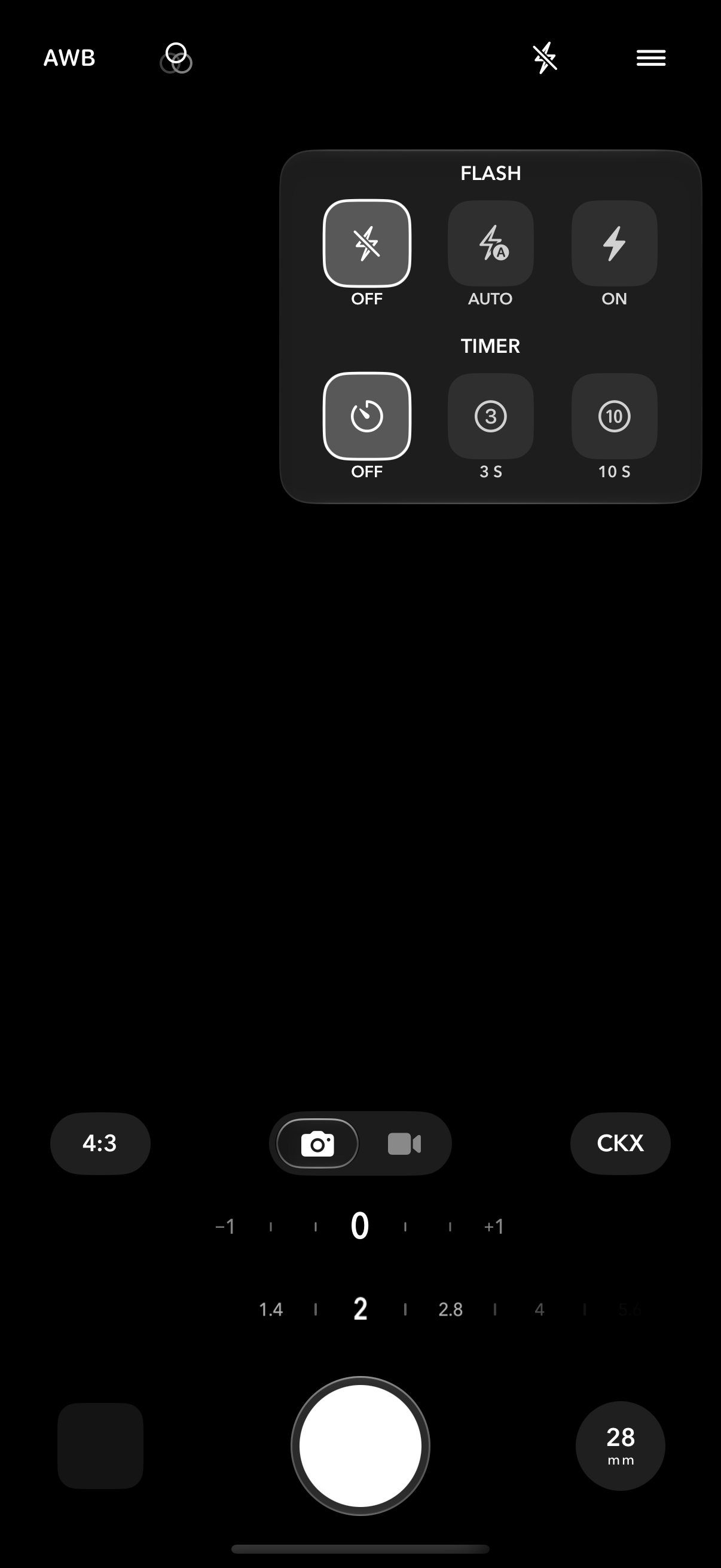
Tap the flash button to step through Off, Auto and On. Hold the flash button to open the flash and timer panel, where the self-timer can be set to 3 or 10 seconds.
QR codes
In Photo mode on the rear cameras, point Lumar at a QR code and a button appears on the viewfinder; the shutter still takes a picture as usual. For a web link the button reads Open and the site’s name: tap it to open the link. For anything else it shows the code’s text: tap it to copy the text. Tap ✕ to dismiss it; it stays away until the code has left the view. Turn off Scan QR Codes in Settings to stop looking for codes.
Lenses#
Lumar has two kinds of lens. Choose between them at the bottom of the lens panel.
lenses.png
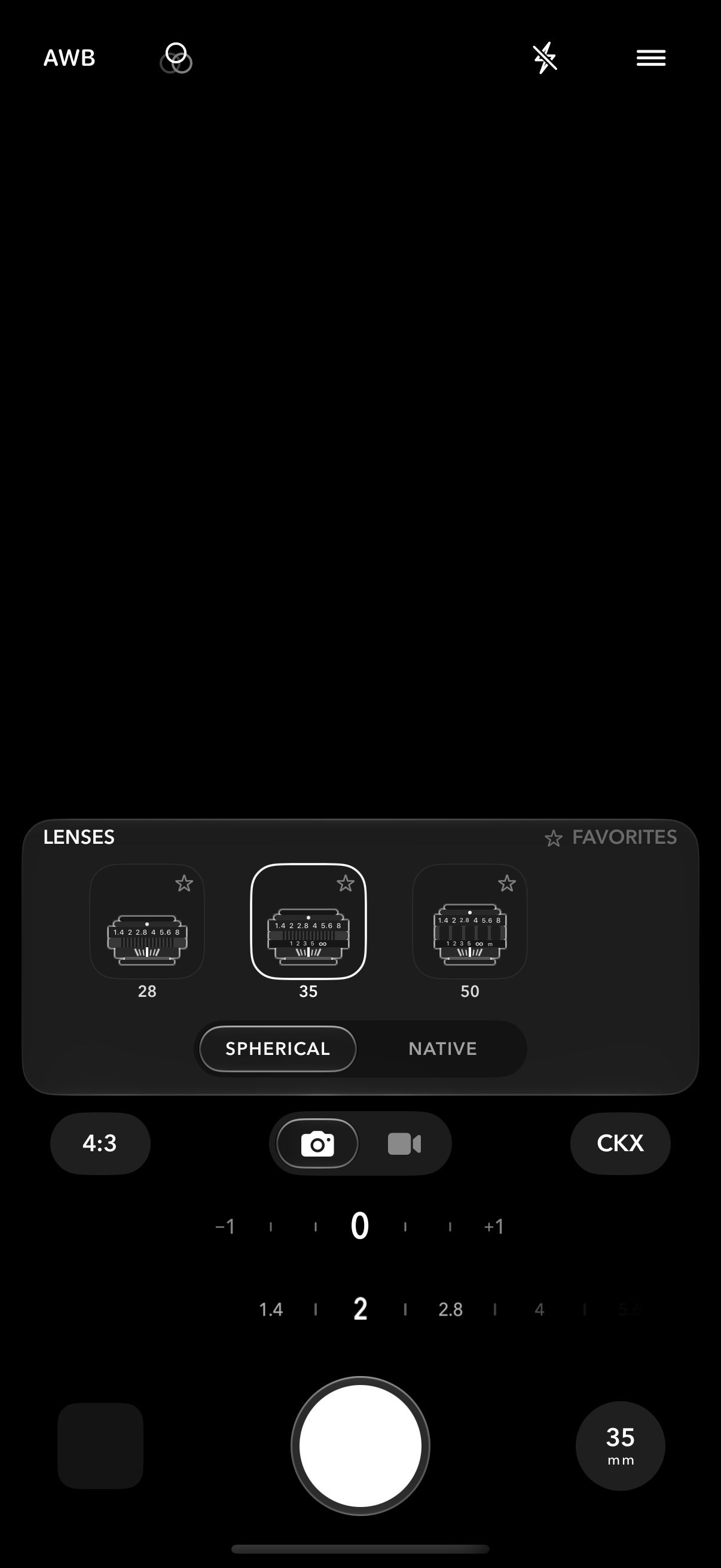
- Spherical lenses are Lumar’s own: seven primes that think the way a photographer does, in focal lengths. Each frames the scene as that focal length always has, and each works with Depth Effect, so the background falls away as it would through that lens: more on the 75 mm than on the 28 mm at the same aperture.
- Native lenses are the iPhone’s own cameras, as they are. Pinch the viewfinder to zoom. Depth Effect is not available with them.
Changing lenses
- Tap the lens button to open the lens panel, and tap a lens.
- Swipe up or down on the lens button to step to the next lens without opening the panel.
- Tap the star on a lens to add it to Favorites. While the panel shows Favorites, a swipe steps through just those.
- Hold the lens button to switch to the front camera. Hold it again to come back.
Focal lengths
The Spherical lenses are primes, also called fixed focal lengths: 21, 28, 35, 50, 75, 100 and 120 mm. Wide lenses take in more of the scene; longer ones bring a subject closer and soften the background more.
lenses.jpg

Close-ups
With Auto Macro Switching on, Lumar changes to the close-focusing camera when you move in on a small subject. It applies to Spherical lenses.
Front camera
Hold the lens button, or choose Front in the lens panel. Flip Front Camera in Settings chooses whether selfies are saved mirrored. Depth Effect is not available on the front camera.
Depth and aperture#
Depth Effect is the heart of the Spherical lenses, and the part of Lumar that took the most work. It is available in Photo mode on the rear cameras.
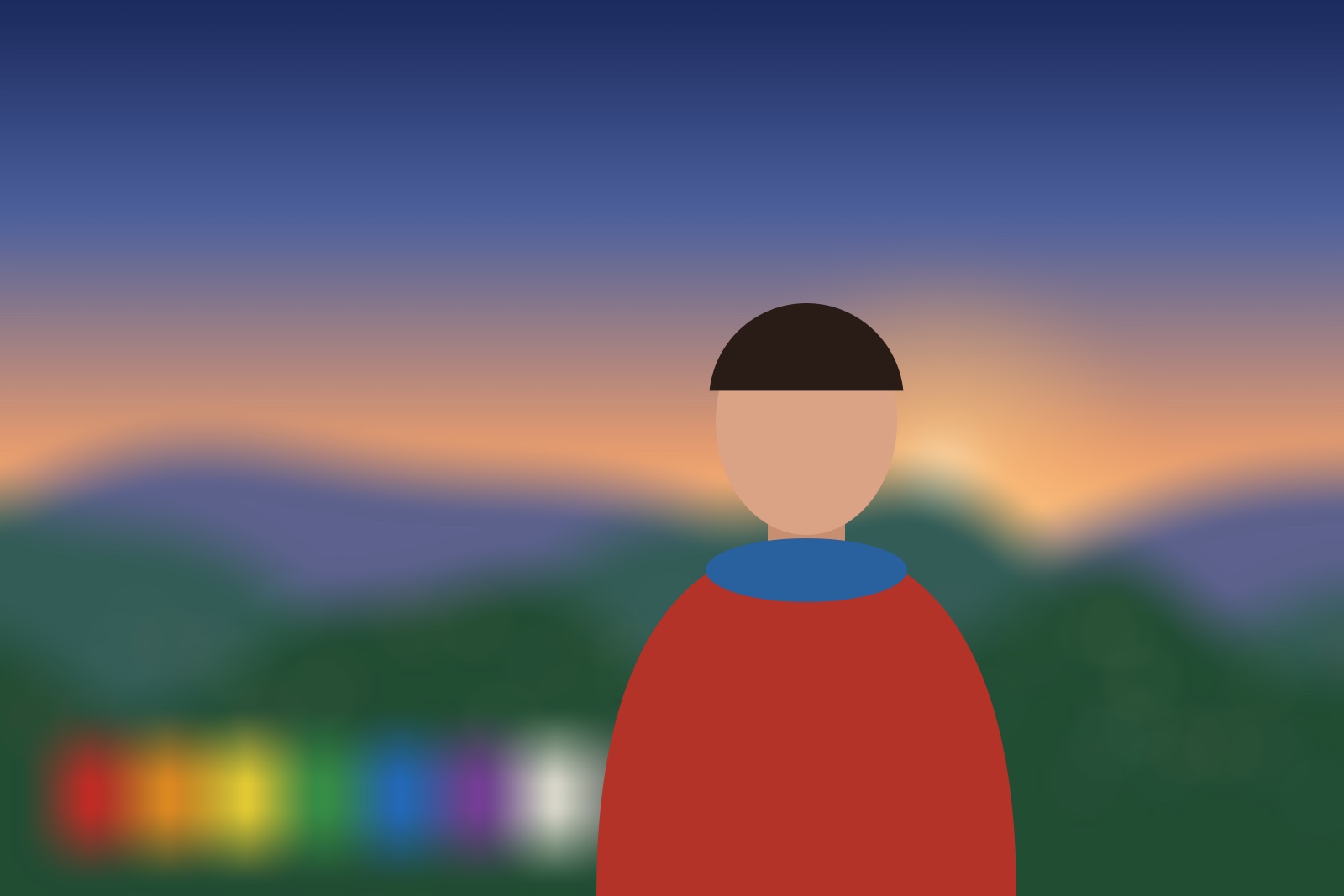
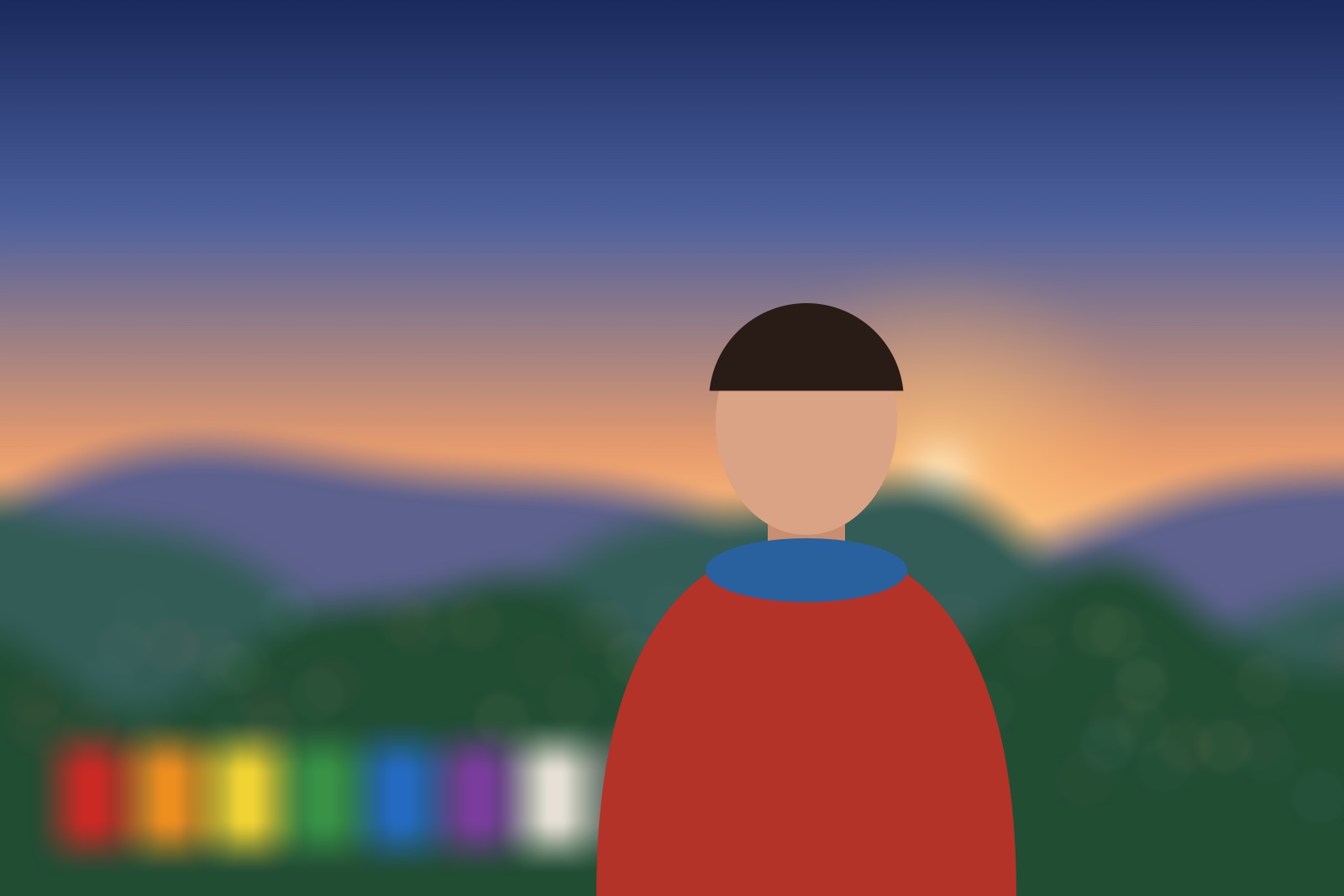
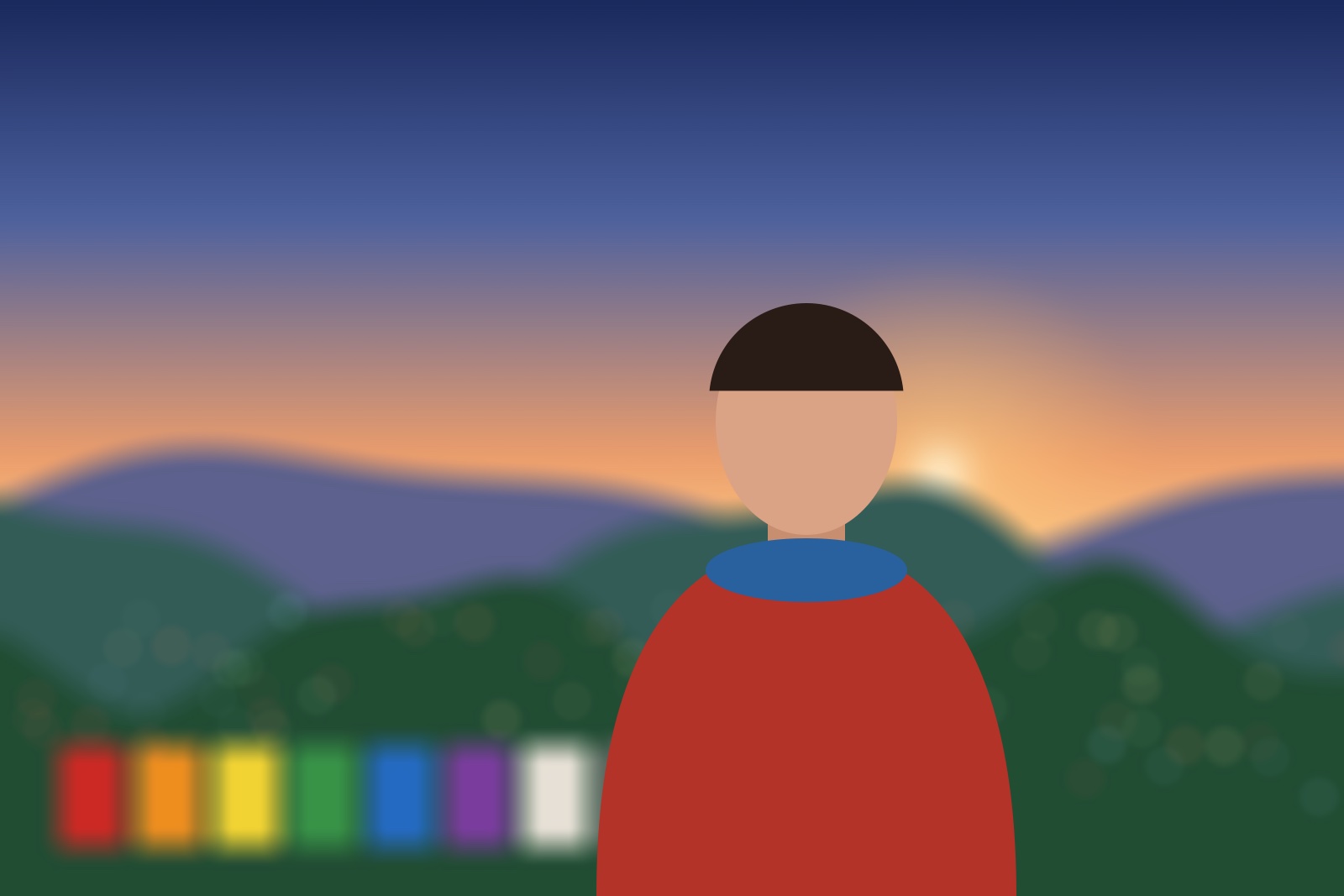
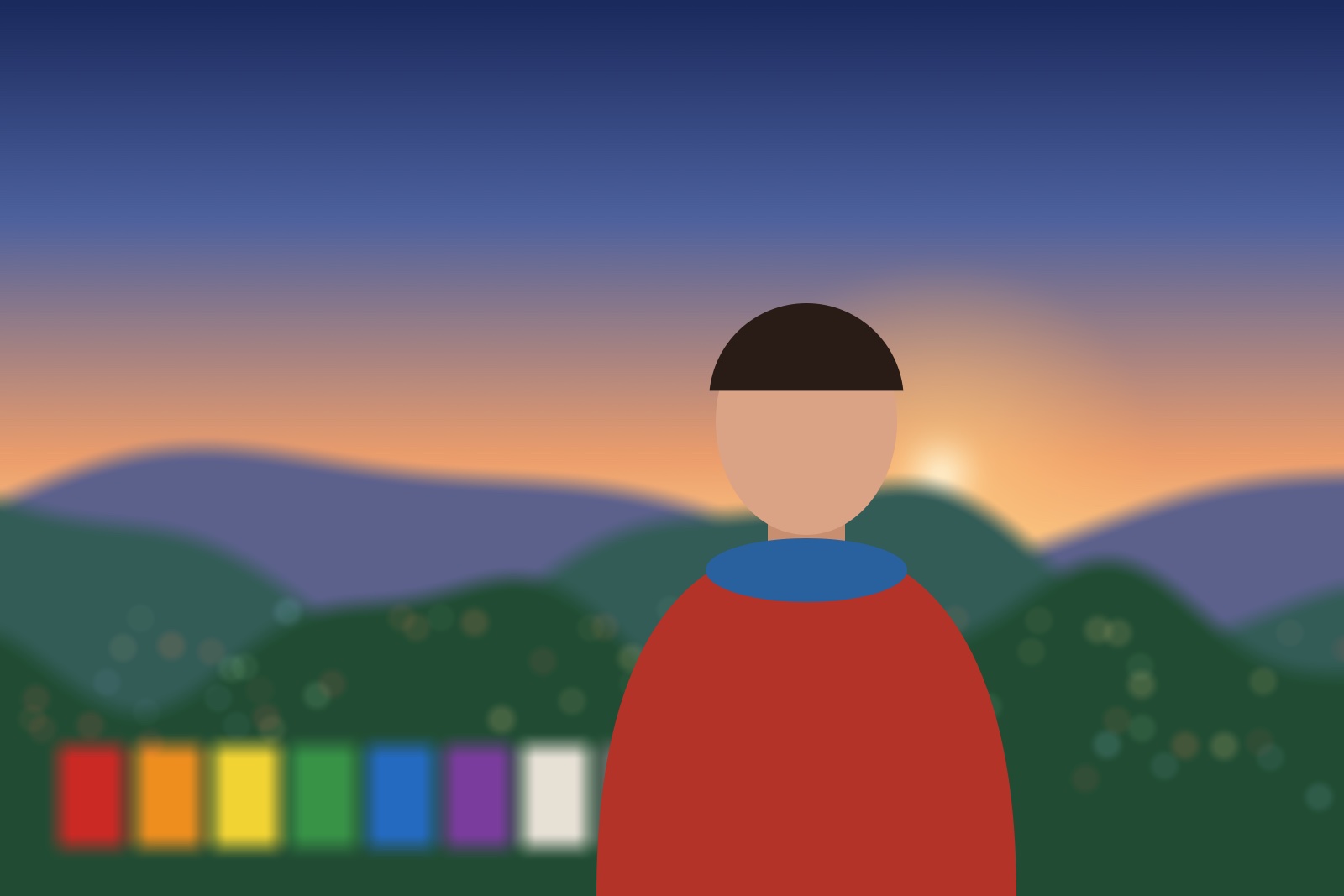
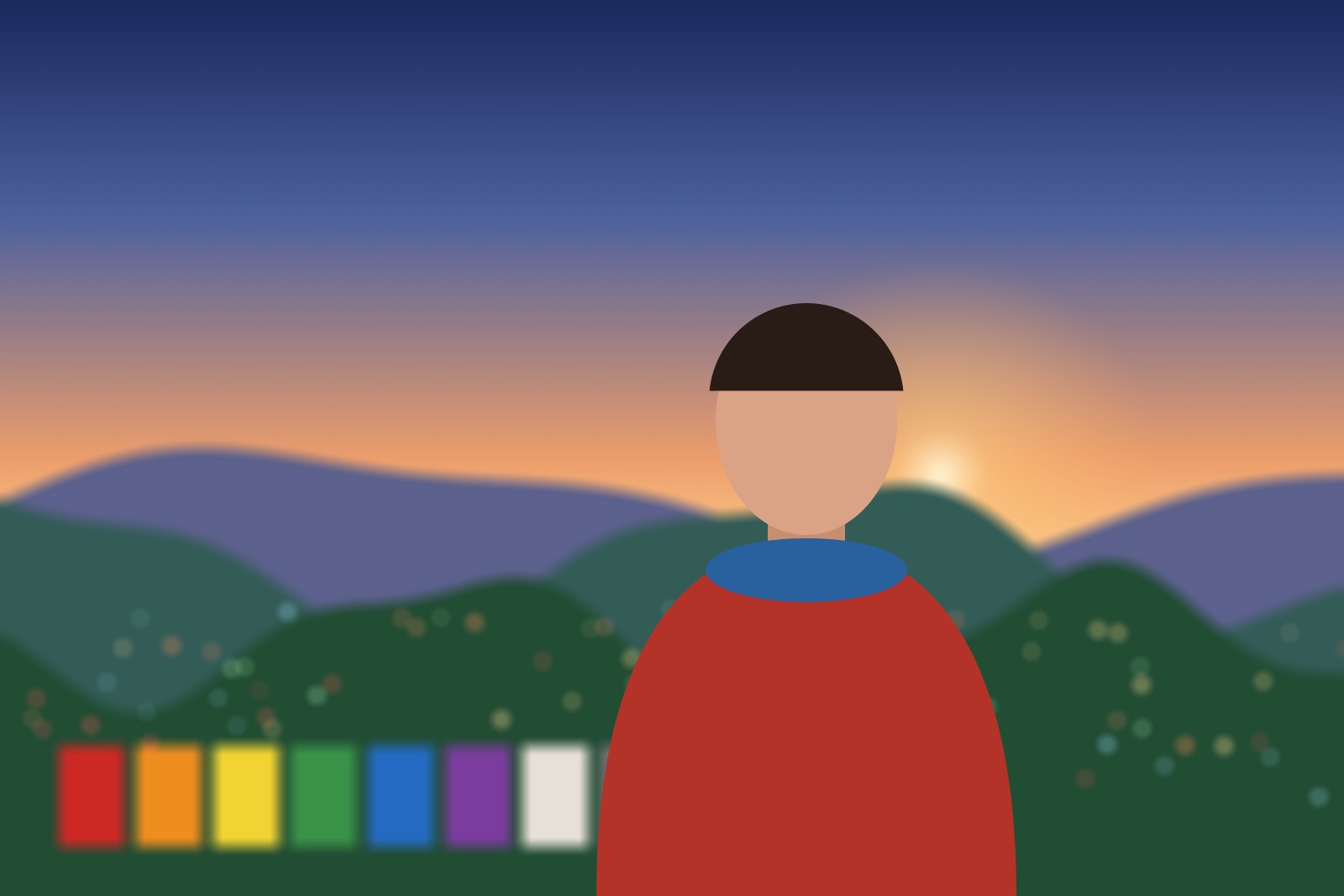
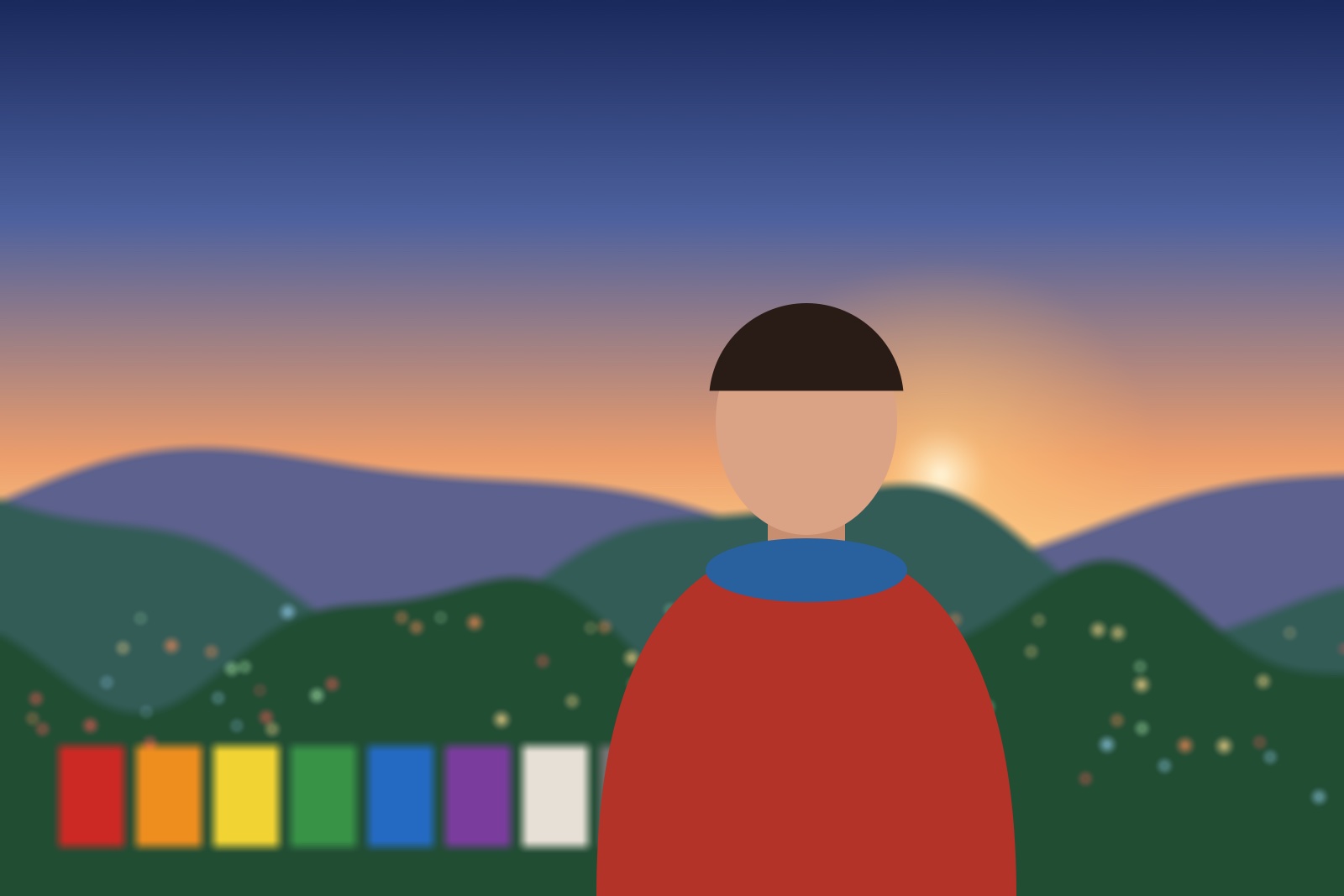
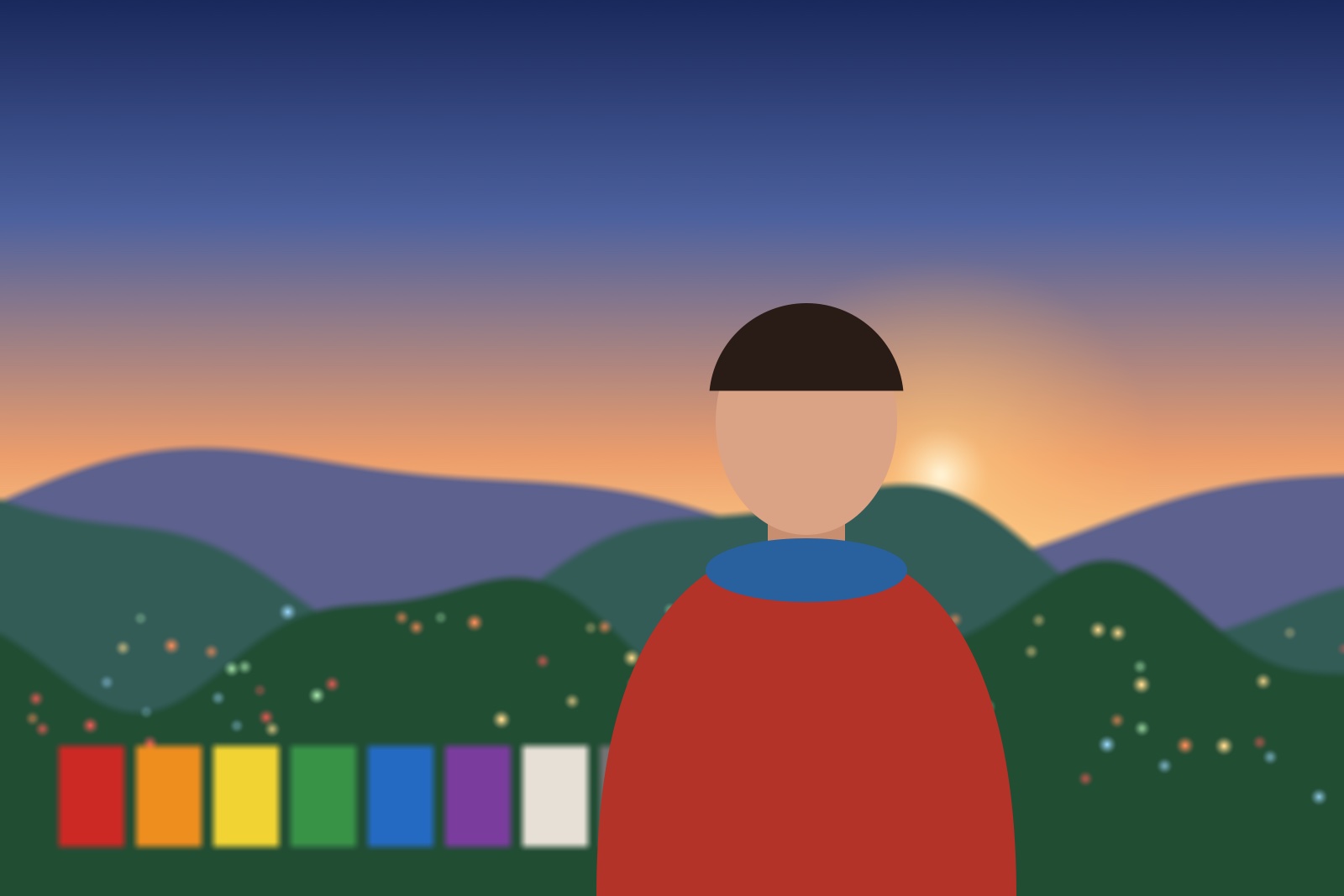
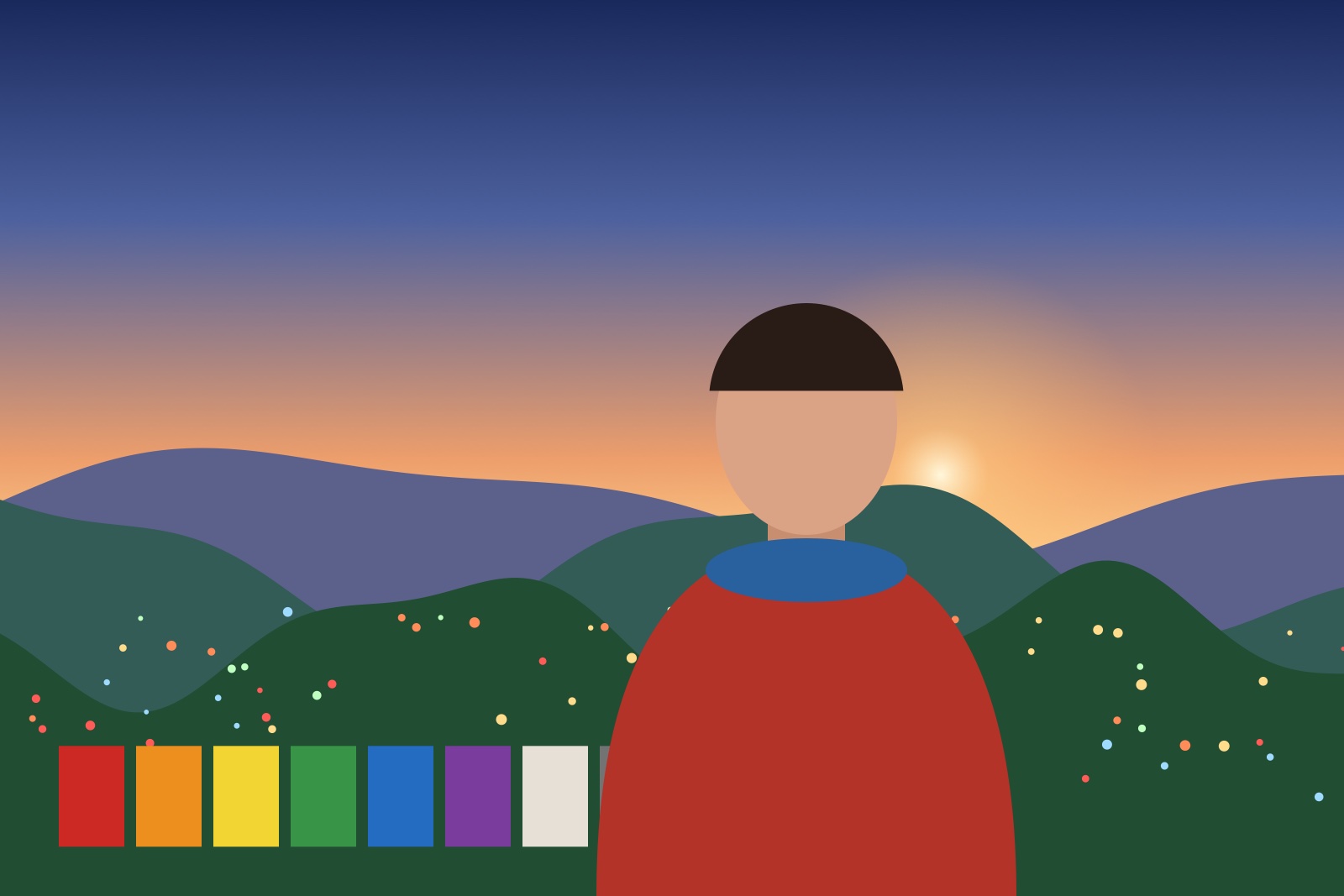
For every photo, Lumar builds a map of how far away each part of the scene is. It combines the iPhone’s own depth data, and LiDAR on iPhones that have it, with highly tuned on-device models, and finds the edges of people so they stay crisp. Then it works out the blur the way a lens forms it: from each point’s distance to the point of focus, at your focal length and aperture. So, as with a real lens, a longer lens softens the background more, a wider aperture softens it more, and stopping down brings it back into focus.
Aperture
Drag the aperture dial in whole stops: f/1.4, 2, 2.8, 4, 5.6, 8, 11 and 16. A low number gives a soft background; a high number keeps more of the scene sharp.
depth.png

Live Depth Preview
Live Depth Preview shows the background blur in the viewfinder before you shoot. It is off at first; turn it on in Settings, under Look.
Working out depth many times a second takes a lot of processing, so with it on the camera can feel less responsive and the iPhone can get warm. The preview is also a guide, not the finished picture: the photograph is rendered at full quality after you take it, so it looks more refined than the preview.
Specular Bokeh
With Specular Bokeh on, small, bright lights behind your subject spread into soft highlights, the way they do through a fast lens.
specular-bokeh.jpg

Focus#
Tap the viewfinder to focus there. Lumar locks onto what you tapped, a person or an object, and keeps it in focus as it moves or as you reframe. Tracking works in Photo and in Video.
focus.png

focus-brackets.jpg

| Brackets | Meaning |
|---|---|
| Solid | Focus is locked on the subject. |
| Dimmed | Still following, but less certain. |
| Dashed | The subject has been lost; the brackets fade. |
Subject AF
Subject AF in Settings can be Off, Face or Eye. With Face or Eye, Lumar finds a person and holds focus on them without a tap. It also picks up cats and dogs.
Hiding the brackets
Turn off Focus Brackets in Settings to hide the brackets. Focus works exactly the same, following the subject, faces and pets and where you tap; only the brackets are hidden.
Styles and grain#
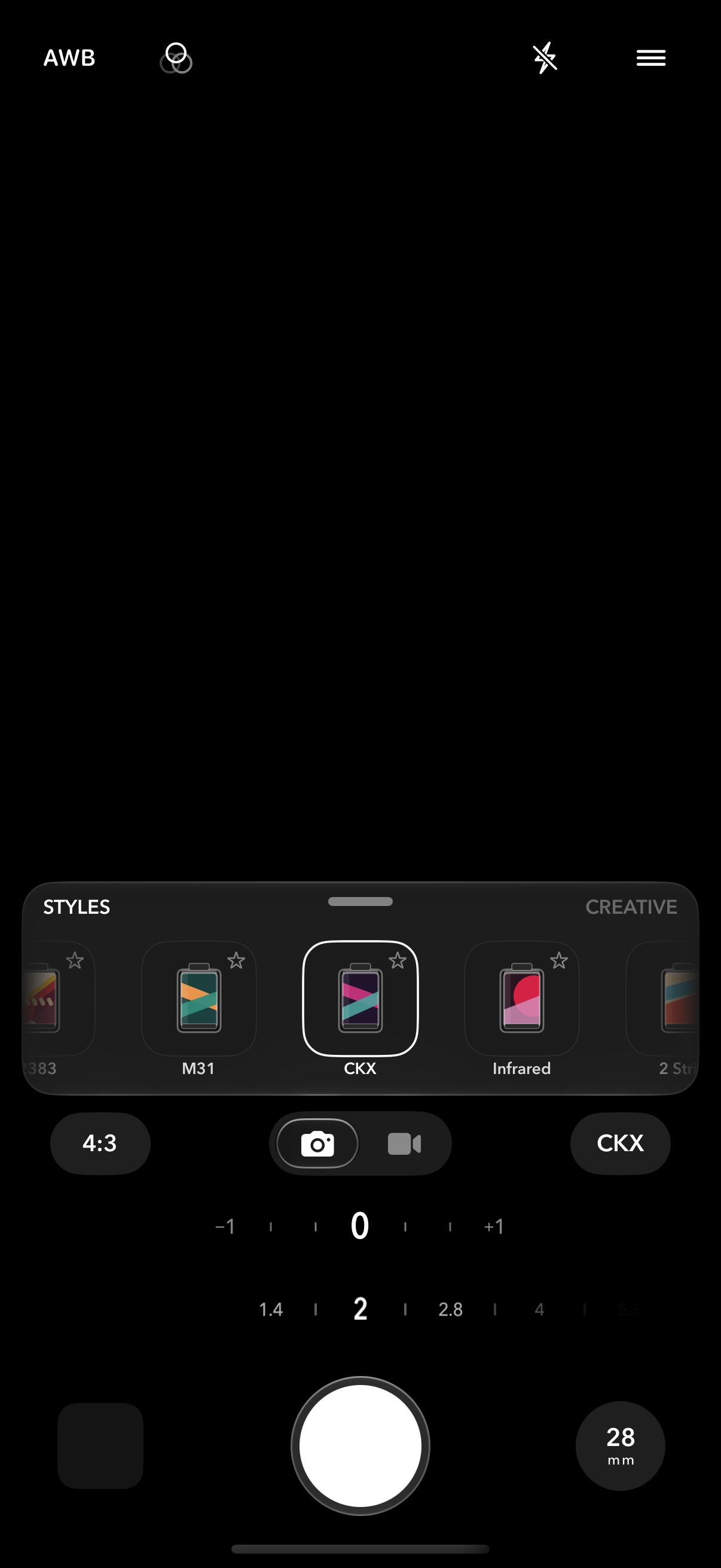
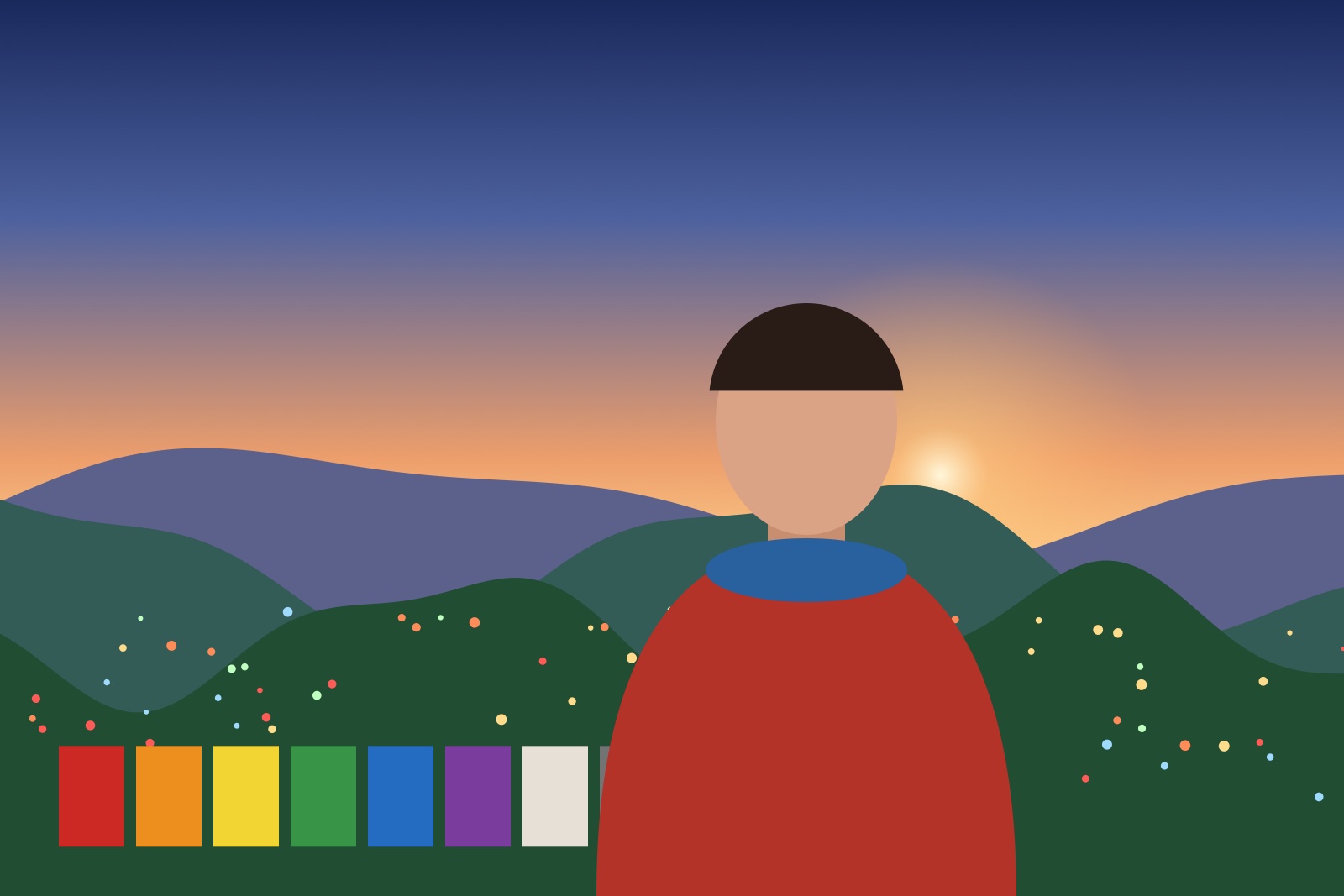
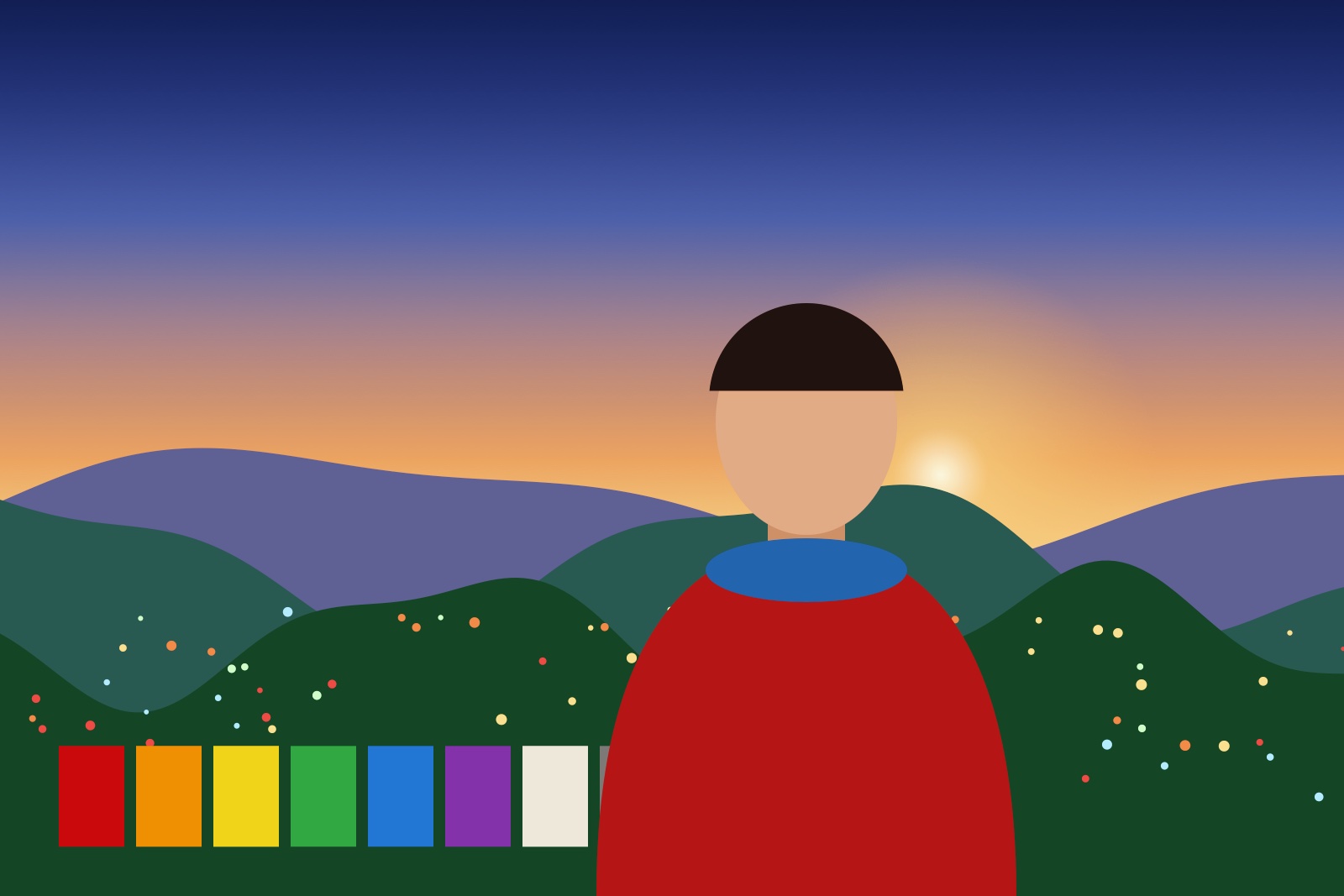
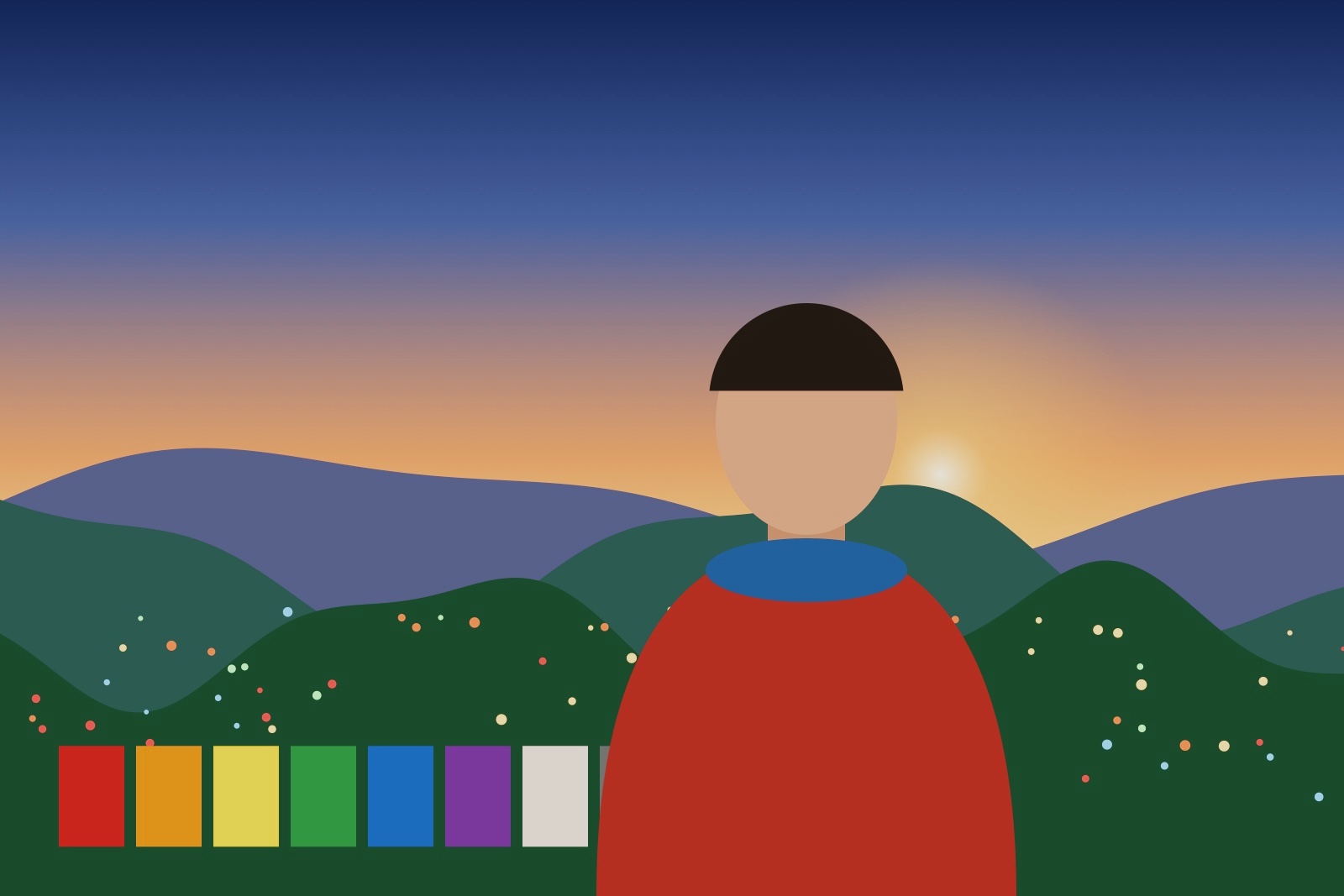
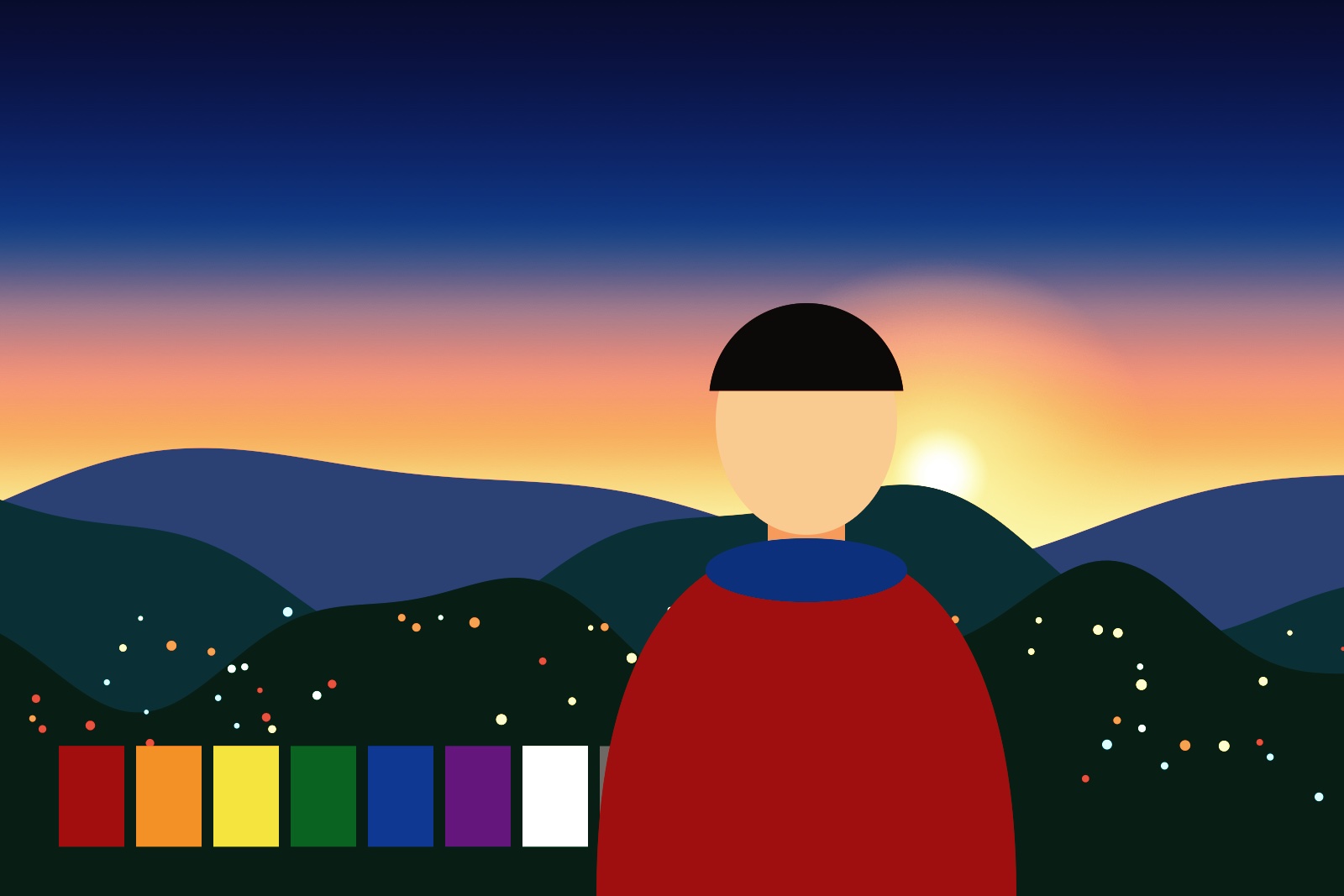
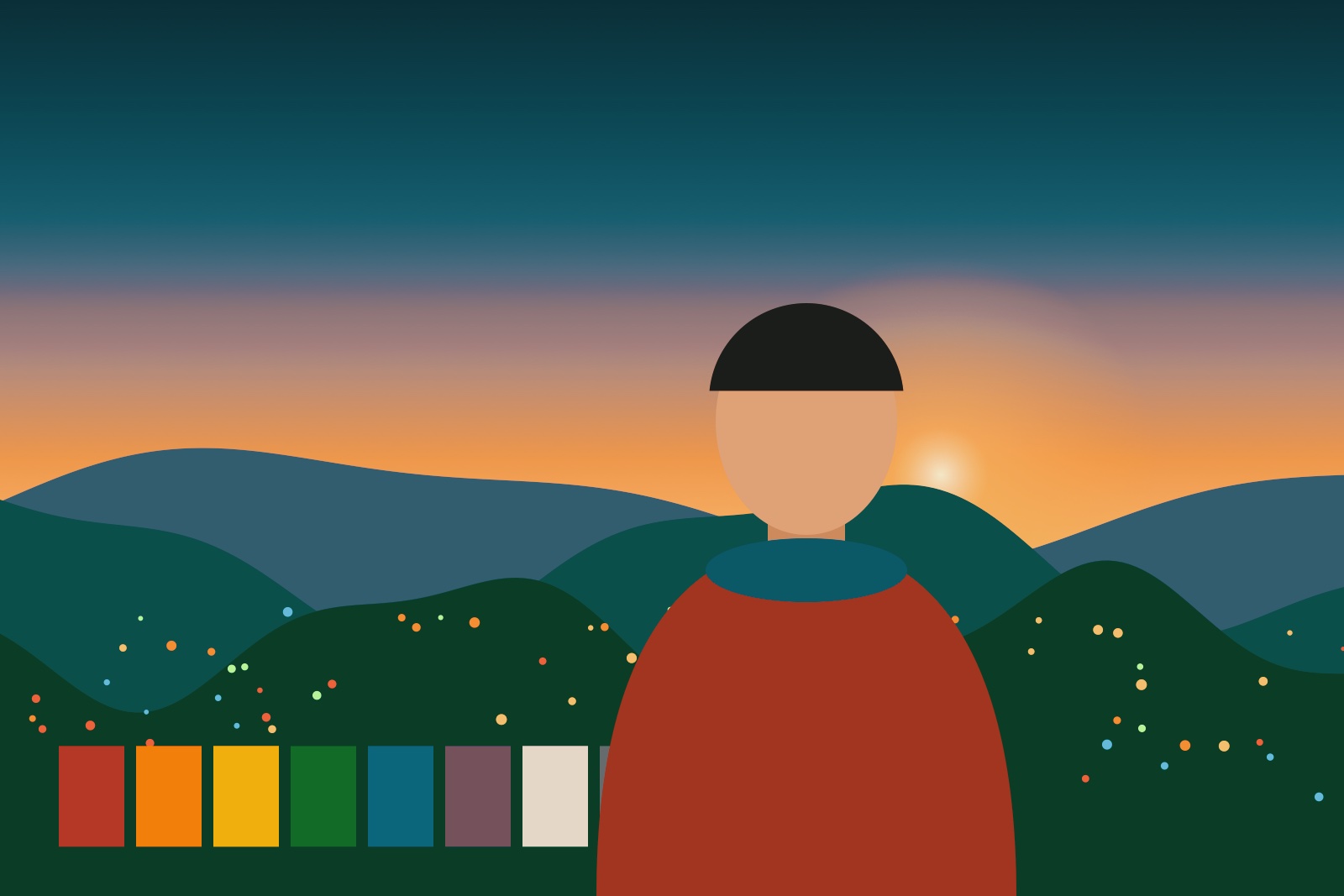
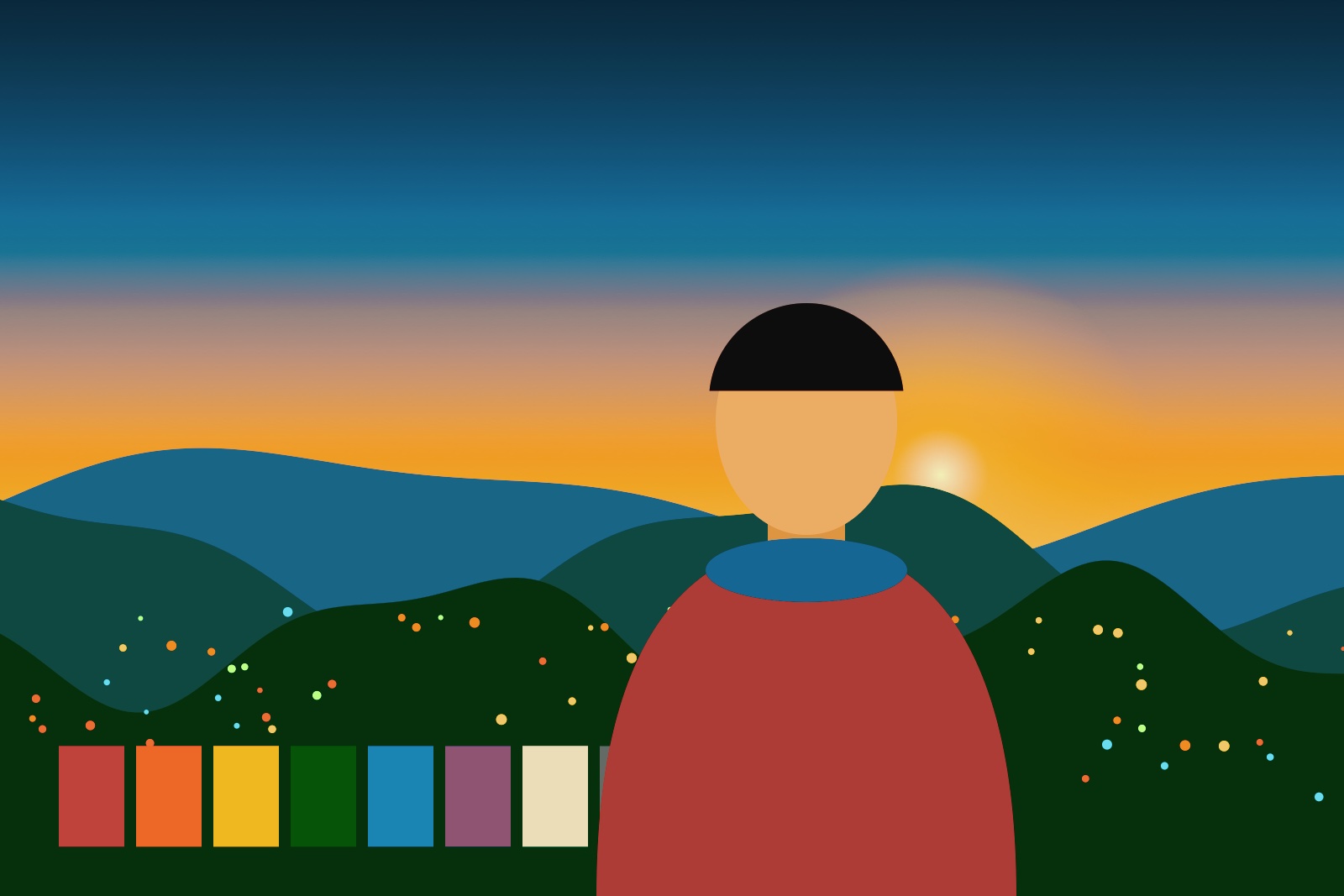
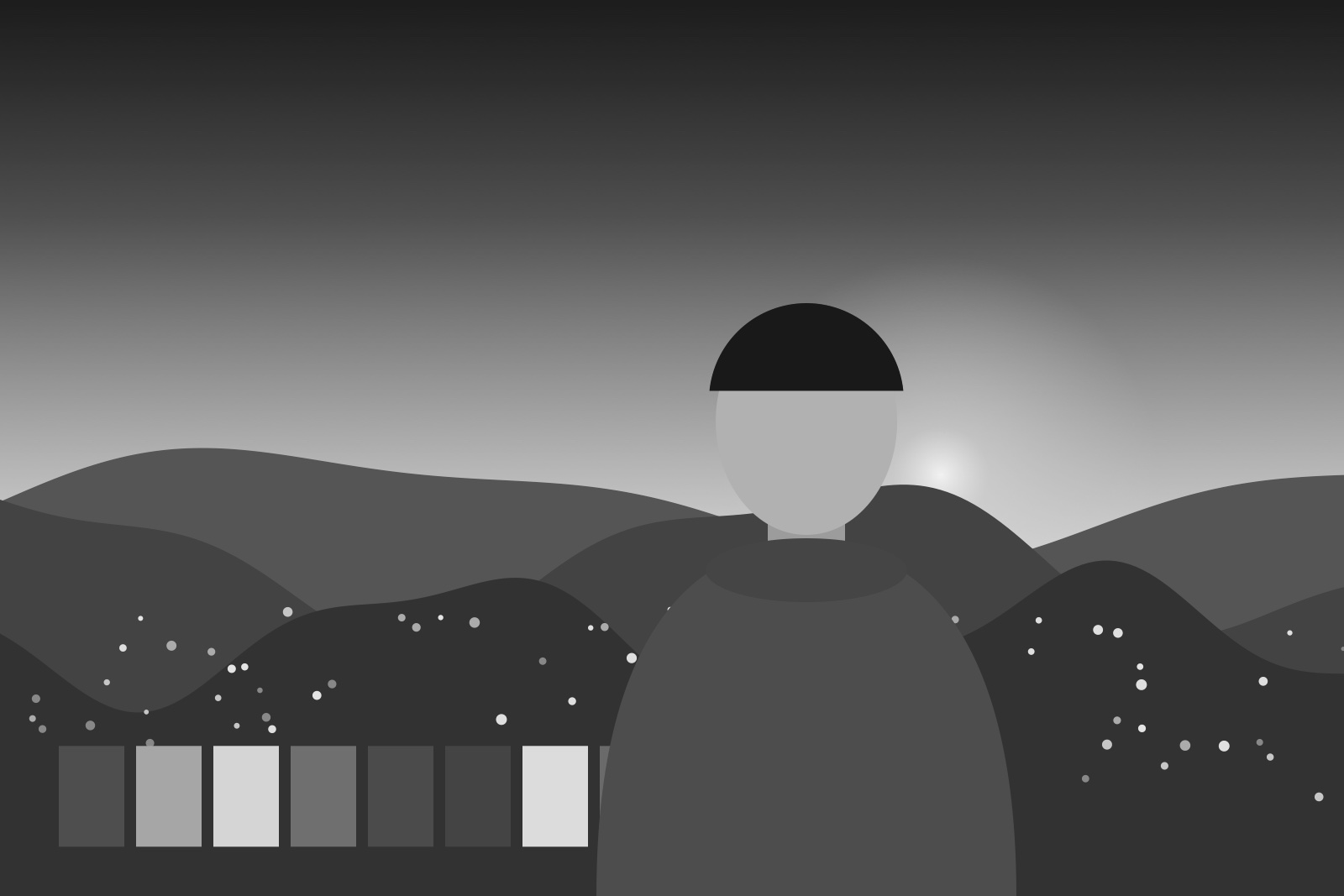
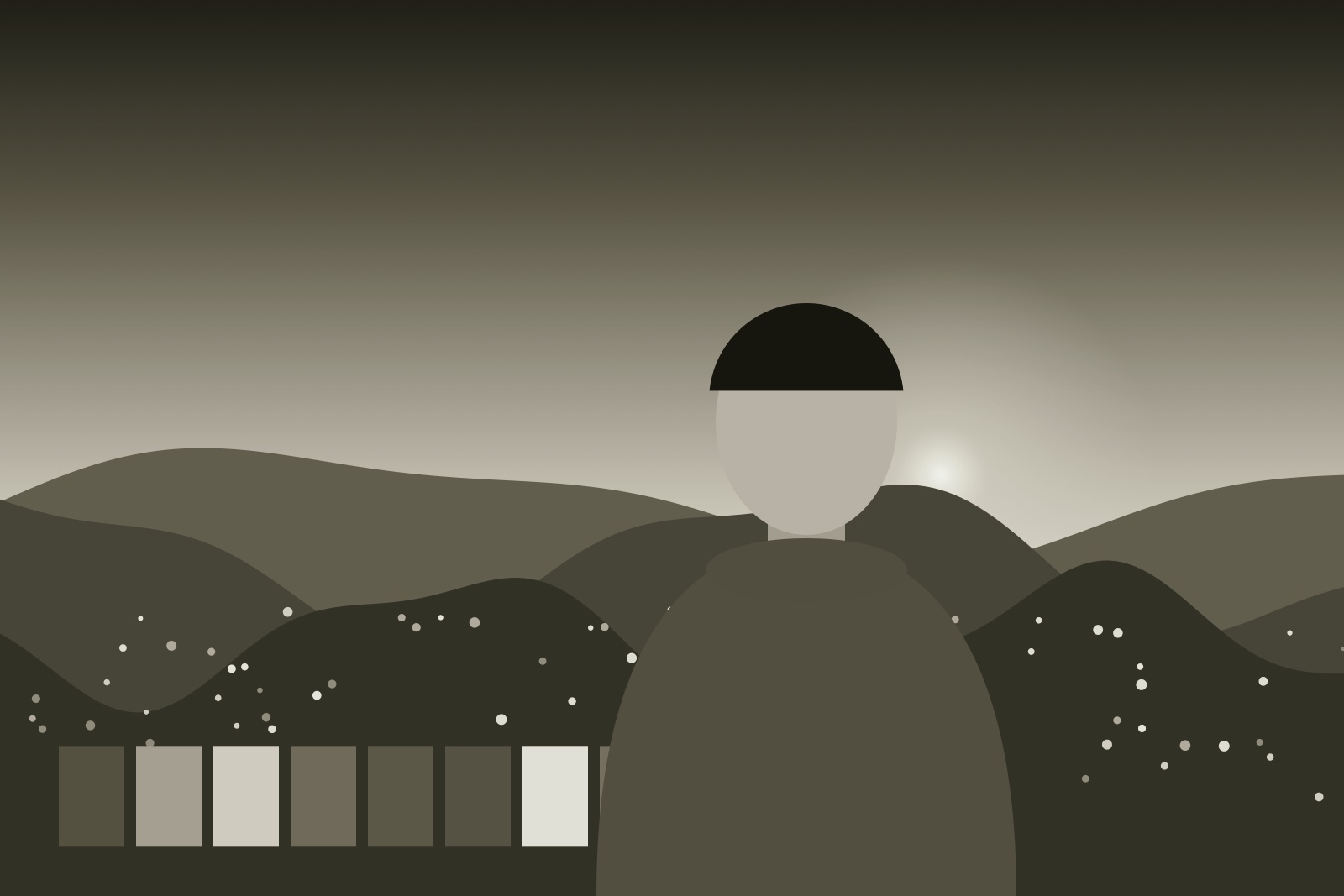
A style sets the color and tone of the picture. Tap the style button to open Styles, choose a category, and tap a style. The viewfinder shows the style live and the saved photograph matches it. To see every style at once, drag up on the row of styles, or tap the arrow at the top of it.
styles.png
The styles
| Style | Look |
|---|---|
| Color | |
| Standard | True color, balanced contrast. The starting point. |
| Vivid | A little more color and punch. |
| Natural | Softer, slightly warmer and less saturated. Kind to skin. |
| B&W | |
| Mono | Classic black and white with clean, deep blacks. |
| Mono HC | Higher contrast, brighter whites, more open shadows. |
| Platinum | Warm-toned black and white, like a platinum print. |
| Creative | |
| Koda | Inspired by a classic mid-century color slide: warm, gently saturated, soft contrast. |
| P400 | Inspired by a favorite professional portrait stock: natural color, gentle contrast, made for people. |
| E200 | Inspired by a modern color slide: clean, saturated color with crisp blues. |
| 2383 | Inspired by the print stock movies are projected from: warm skin, deep shadows, teal-leaning skies. |
| M31 | Inspired by the teal-and-orange look of the summer blockbuster: cool shadows, deep teal skies, warm skin. |
| CKX | Teal shadows, golden highlights, dense deep greens. |
| Infrared | Inspired by the color infrared stock made for aerial survey: greens turn pink and magenta. |
| 2 Strip | Inspired by the two-color process of 1920s cinema: reds and teals only. |
| 3 Strip | Inspired by the three-color process behind Hollywood’s golden-age color: bold, saturated primaries. |
Style strength
The strength slider mixes the style with the unstyled picture. 100 is the full style and 0 is none of it.
style-strength.jpg

Favorites
Tap the star on a style to add it to Favorites, so the ones you use most are together.
Recipes
A recipe saves a whole look so one tap brings it back: the style and its strength, the grain, the white balance, the lens filter and, for black and white, the color filter. The lens, frame, flash and exposure are left as they are.
- Set up the look you want.
- In Styles, choose Recipes in the categories, under Favorites.
- Tap + at the end of the row to save the look as a new recipe.
Tap a recipe to use it. Hold it to rename it or delete it. Choosing a plain style afterward brings back the look you had before the recipe.
Color filters for black and white
Choose a black-and-white style and a Color Filter bar appears beside the styles: None, Yellow, Orange, Red, Green or Blue. The filters work like the colored glass used in black-and-white photography.
bw-filter.png
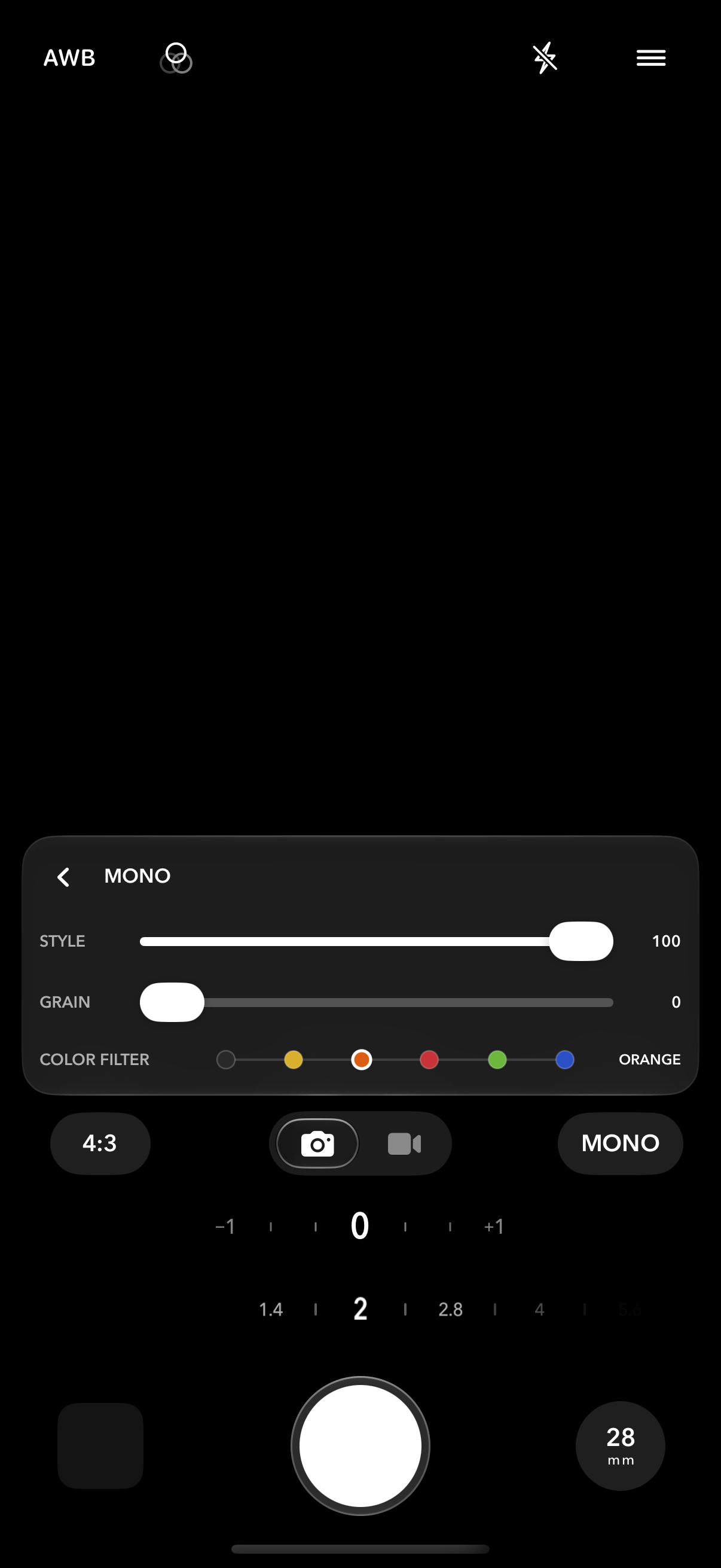
Yellow, orange and red darken blue skies by increasing amounts; green lightens foliage; blue lightens skies and darkens skin.
Grain
Grain is one setting for every style: set it once and it stays as you change styles. Adjust Grain Strength from 0 to 100 in the Styles panel or in Settings, under Look. Choose the Grain Type in Settings.
Lens filters#
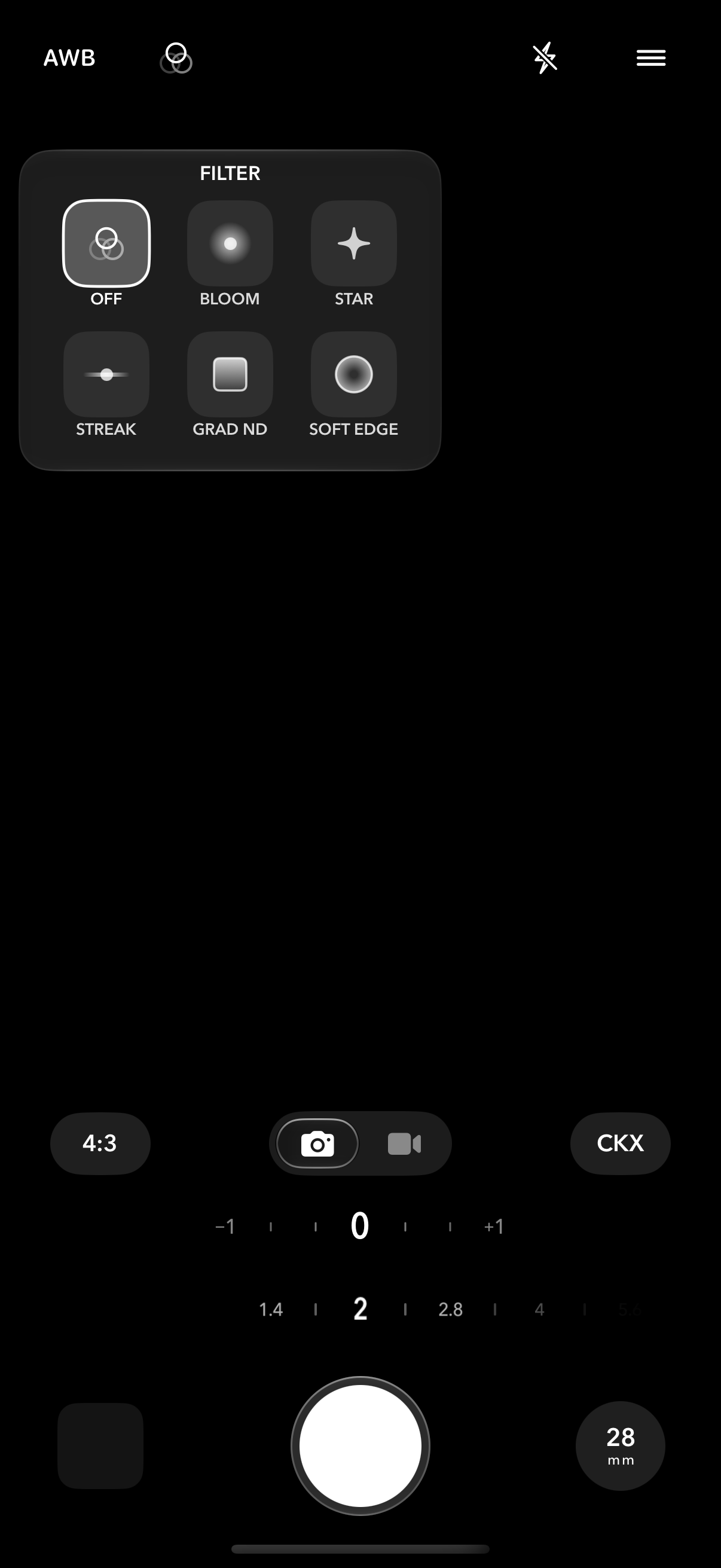
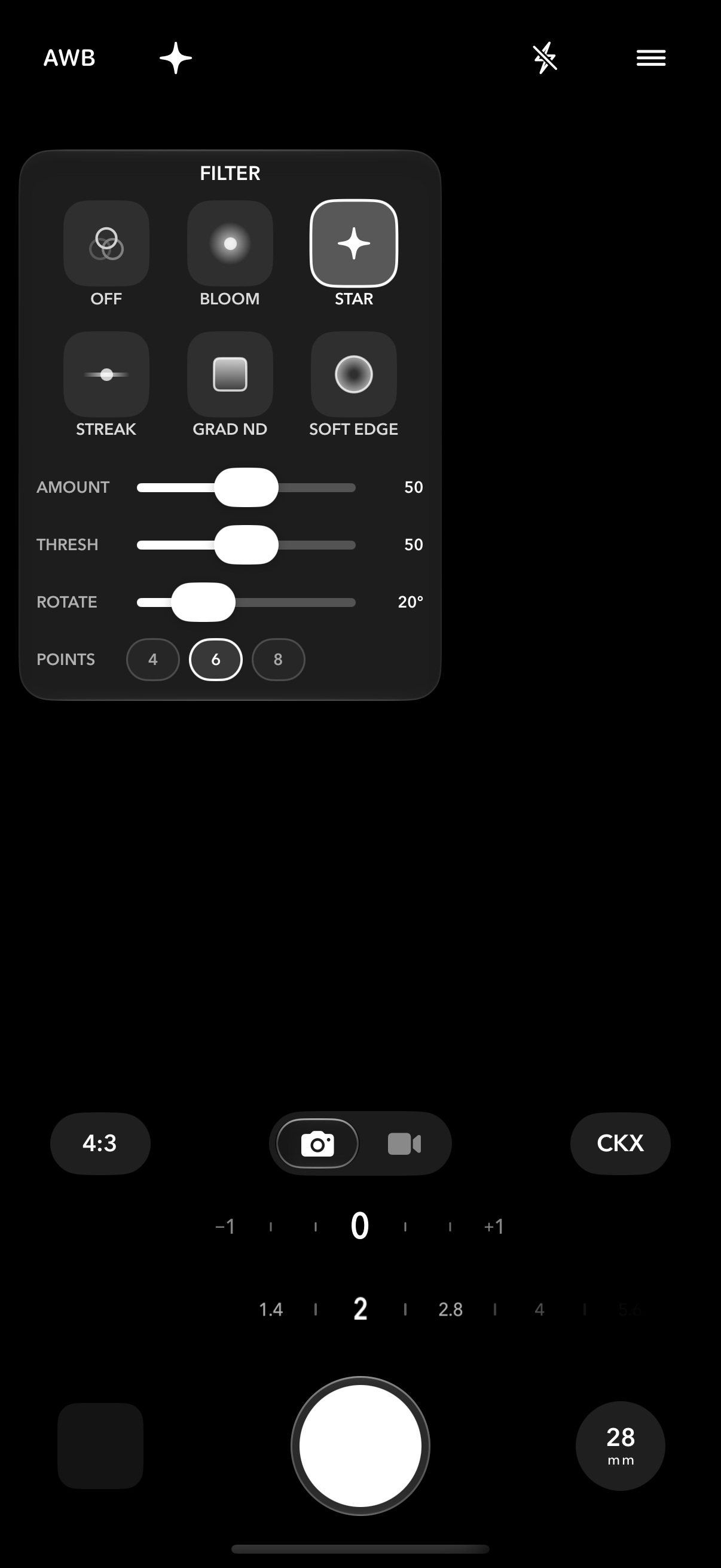
Tap Filter in the top bar to choose a filter. Hold it to turn the filter off, and hold again to bring back the last one you used. Filters act on the light before the style is applied, so they are rendered as part of the scene. One filter is used at a time.
filters.png
filter-star.png
lens-filters.jpg

| Filter | What it does | Controls |
|---|---|---|
| Bloom | Highlights glow and spread, like a mist filter. | Bloom, 0 to 100 |
| Star | Bright points of light throw star rays. | Amount, threshold, rotation, 4, 6 or 8 points |
| Streak | A horizontal flare through bright lights. | Amount, threshold, tint (Blue, Warm, Neutral) |
| Grad ND | Darkens one edge of the frame to hold back a bright sky. | Amount, edge |
| Soft Edge | Keeps the center clear and softens toward the edges. | Amount |
Threshold sets how bright a light must be before it throws a star or a streak. Raise it so only the brightest lights are affected.
Grad ND darkens from the top of the frame unless you choose another edge with the four edge buttons: top, bottom, left or right. It follows how you hold the phone, so the top stays the top when you turn it sideways.
White balance#
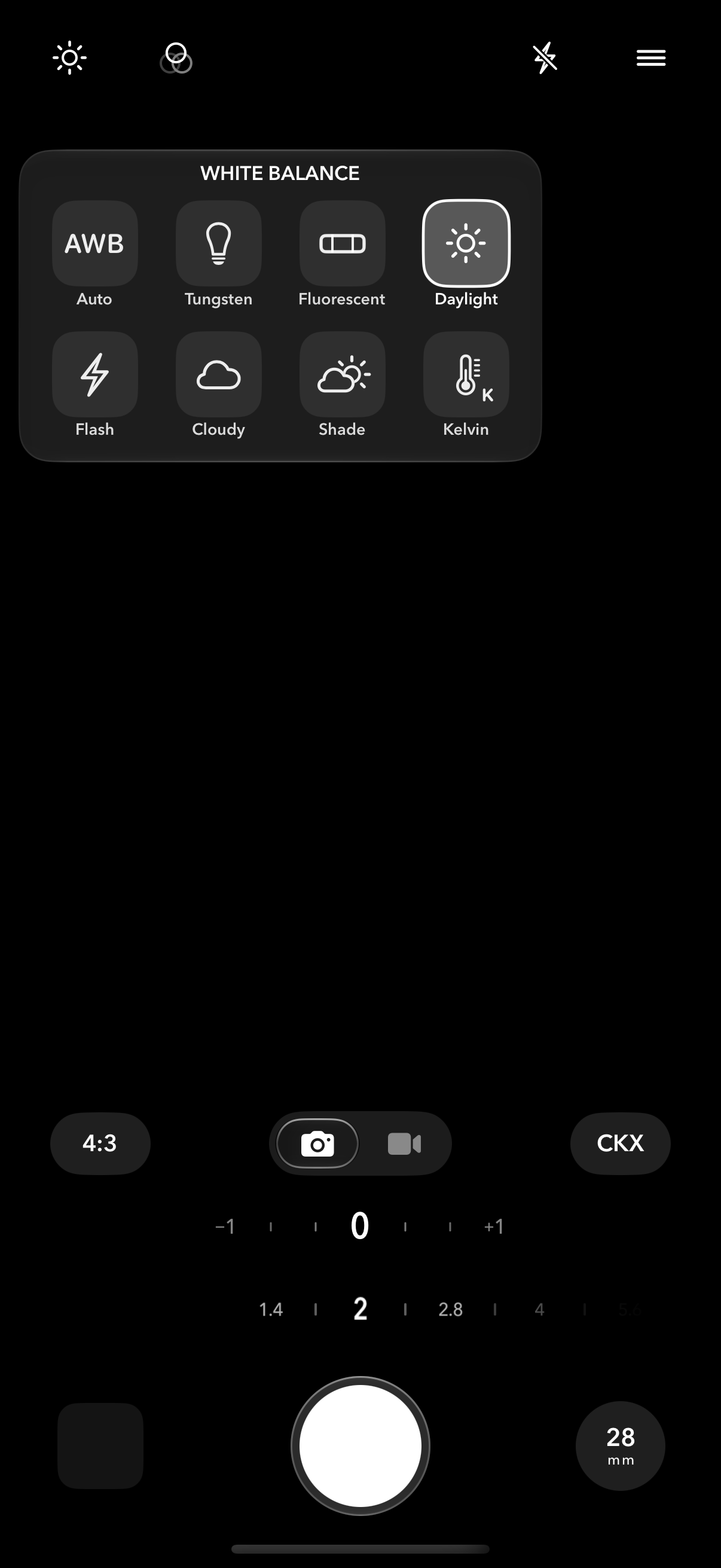
Leave white balance on AWB and Lumar chooses for you, or pick a preset to fix the color of the light. Double-tap the white balance button to go back to AWB. With K, double-tap the Kelvin or tint slider to put it back to 5600 K or 0.
white-balance.png
white-balance.jpg

| Preset | Light | Kelvin |
|---|---|---|
| Tung | Household and tungsten lamps | 3200 |
| Fluor | Fluorescent tubes | 4000 |
| Day | Daylight | 5600 |
| Flash | Flash | 6000 |
| Cloud | Overcast | 6500 |
| Shade | Open shade | 7500 |
| K | Your own setting | 2500 to 10000, plus tint |
Aspect ratio#
aspect.png
Choosing a frame
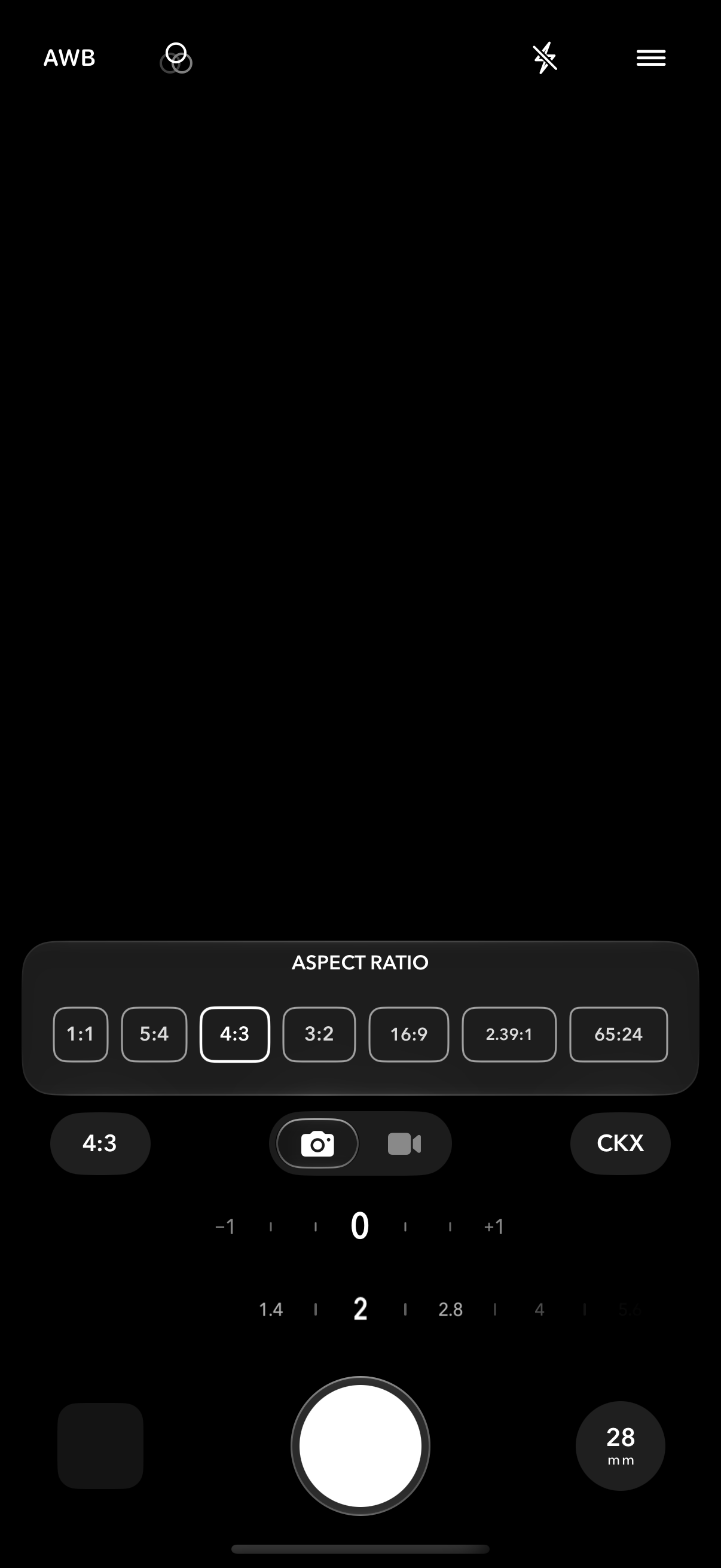
Choose the shape of the picture with Aspect Ratio: 1:1, 5:4, 4:3, 3:2, 16:9, 2.39:1 or 65:24.
aspect-ratios.jpg

Grids, the level and Steady Viewfinder are in Settings, under Viewfinder.
Video#
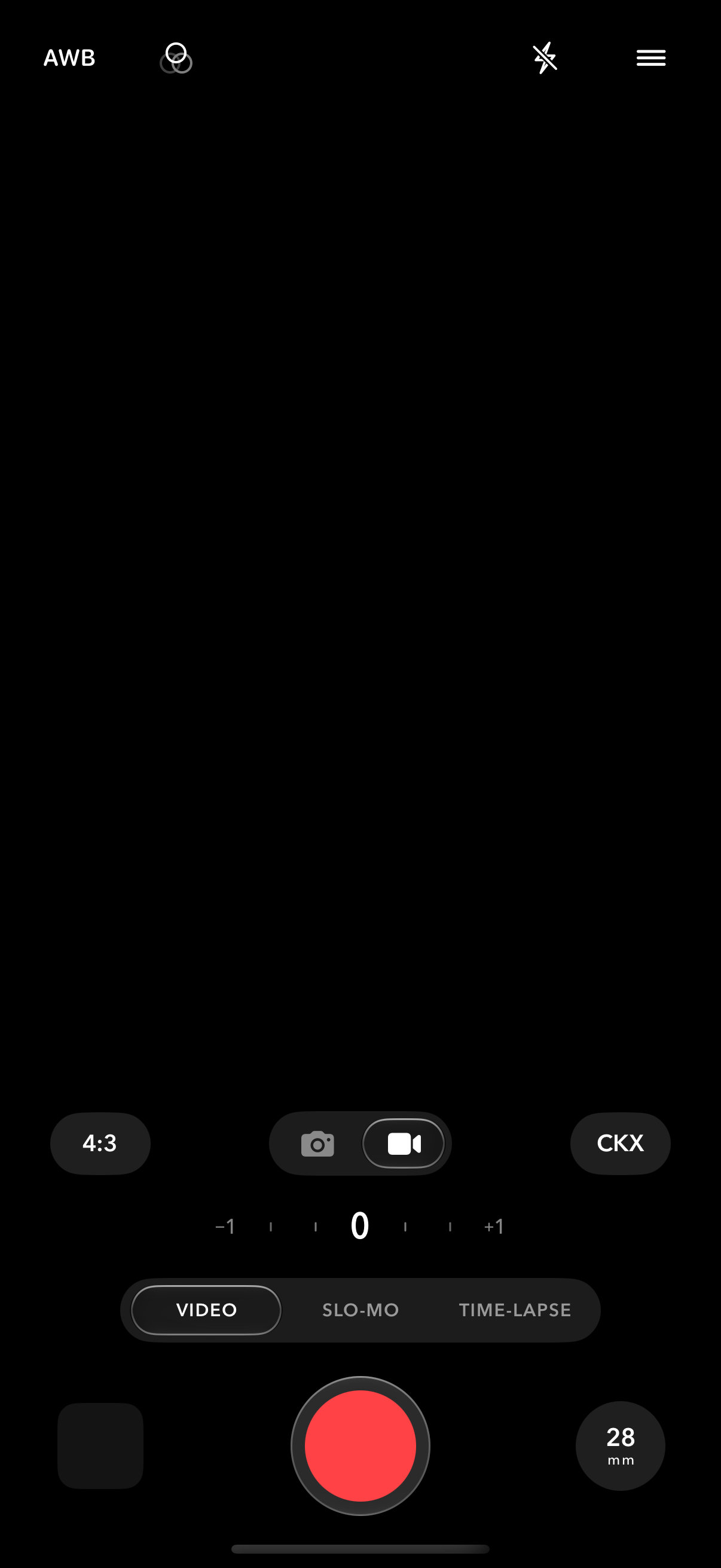
Switch to Video and choose how to record.
video.png
| Mode | What it is |
|---|---|
| Video | Standard recording at 1080p or 4K, at 24, 30 or 60 fps. |
| Slow-Mo | 1080p at 120 or 240 fps. |
| Timelapse | One frame every 0.5, 1 or 2 seconds. |
motion-blur.jpg

Rendering
Styled video is finished after you stop recording, then saved to Photos. Longer clips and 4K take longer. If you leave Lumar, iOS lets it keep rendering for about 30 seconds; if the video isn’t done by then, Lumar picks it up again the next time you open it.
Styles in video
With Link Photo & Video Style on, Photo and Video share one style, so photos and clips from the same moment match. Turn it off to keep a separate style for each. Depth Effect is a Photo feature.
Editing photos#
Lumar saves how each photograph was made along with the picture, so it can be reopened and changed, right down to where it is focused. Open a photo in Lumar and tap Edit. There are three tabs.
editor-look.png

editor.png

editor-focus.png

| Tab | What you can change |
|---|---|
| Look | Style and strength, grain, white balance, color filter, lens filter. |
| Frame | Crop and aspect ratio, image rotation, and Level, Vertical and Horizontal correction. |
| Focus | Where the photo is focused, and the lens and aperture. Tap someone else to focus on them, or change the aperture to soften the background more or less. |
editor-before-after.jpg

- Pinch and drag to zoom in on the picture.
- Hold the photo to see it as it was when the editor opened.
- Reset returns the photo to how it was shot.
- When you finish, choose Save New Copy or Overwrite Original.
Settings#
Grouped as they are in the app. Jump to a group:
settings.png
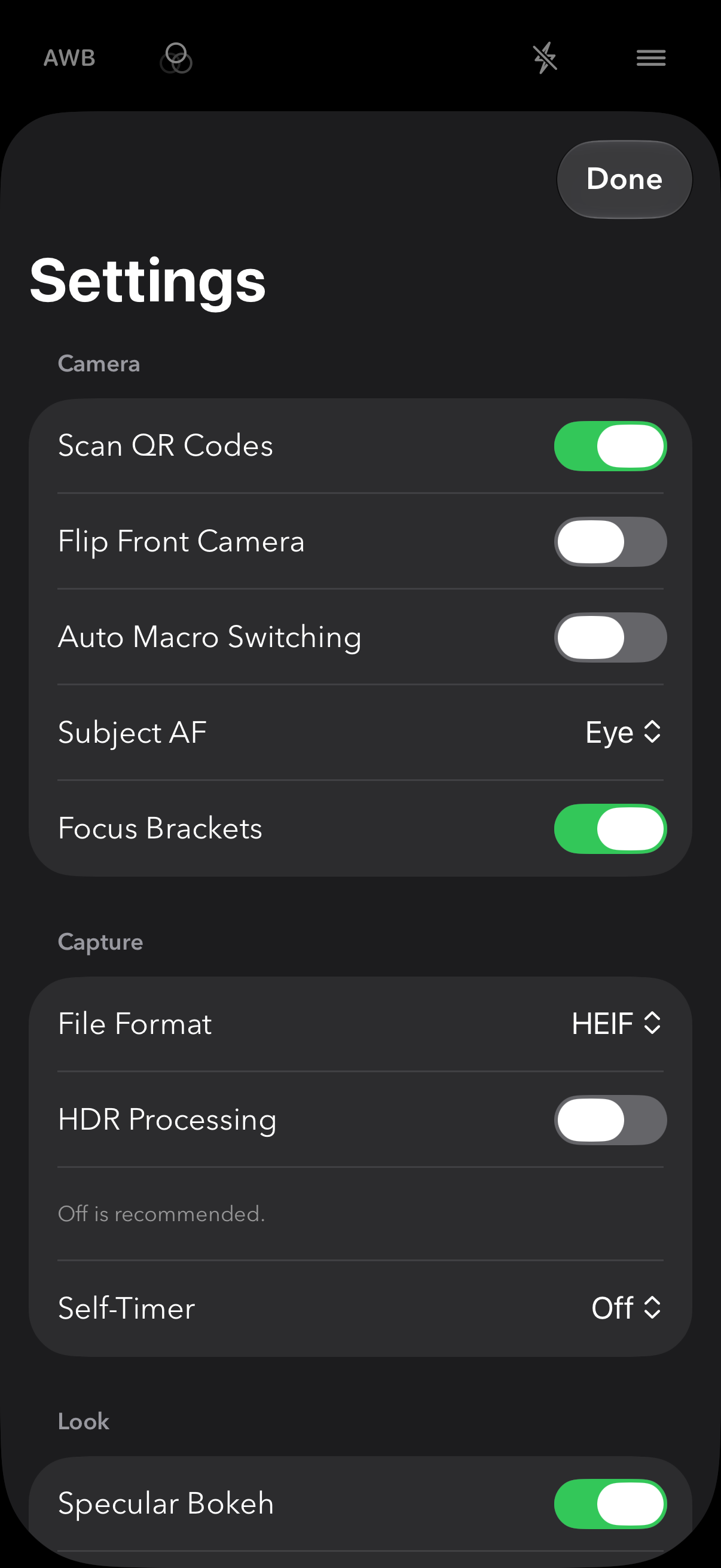
Camera
| Scan QR Codes | Shows a button on the viewfinder when a QR code is in view. See QR codes. |
| Flip Front Camera | Whether front-camera pictures are mirrored. |
| Auto Macro Switching | Changes to the close-focusing camera for near subjects. Spherical lenses only. |
| Subject AF | Off, Face or Eye. |
| Focus Brackets | Shows the focus brackets. Off hides them; focus works the same. See Focus. |
Capture
| File Format | HEIF or JPEG. |
| Resolution | 12, 24 or 48 MP, on iPhones that offer them. 48 MP is taken at the 0.5×, 1× and telephoto cameras’ own lenses with Depth Effect and flash off; otherwise the photo is 24 MP. Larger photos take longer and use more storage. |
| Depth Resolution | 12 or 24 MP, for photos taken with Depth Effect on. Starts at 12 MP. Shown on iPhones whose cameras offer 24 MP. |
| HDR Processing | Uses the iPhone’s multi-frame HDR. Off is recommended, so styles render as designed. Dark scenes still get multi-frame processing for cleaner pictures. |
| Shutter Button | On iPhones with a Camera Control: whether the Camera Control, the Action button or both take the picture. See Taking photos. |
Look
| Specular Bokeh | Small, bright lights in the background spread into soft highlights. See Specular Bokeh. |
| Sharpening | On: photos get the iPhone’s usual crisp detail. Off: photos are a little softer. Fine detail is eased before the grain, iOS’s processing is lighter and Night mode adds no sharpening. 24 and 48 MP photos keep full processing either way. |
| Grain Type, Grain Strength | One grain for every style. See Grain. |
| Depth Effect | Shallow depth of field for Spherical lenses in Photo mode. |
| Live Depth Preview | Shows the blur in the viewfinder. Off at first; it takes a lot of processing. See Live Depth Preview. |
Viewfinder
| Grid | Off, Rule of Thirds, Golden Ratio, Golden Triangles or Golden Spiral. |
| Level | A guide for holding the camera straight. |
| Zebras | Video only. Stripes over highlights that are close to clipping. |
| Steady Viewfinder | A steadier viewfinder on the 50 mm and longer lenses. |
grid.png
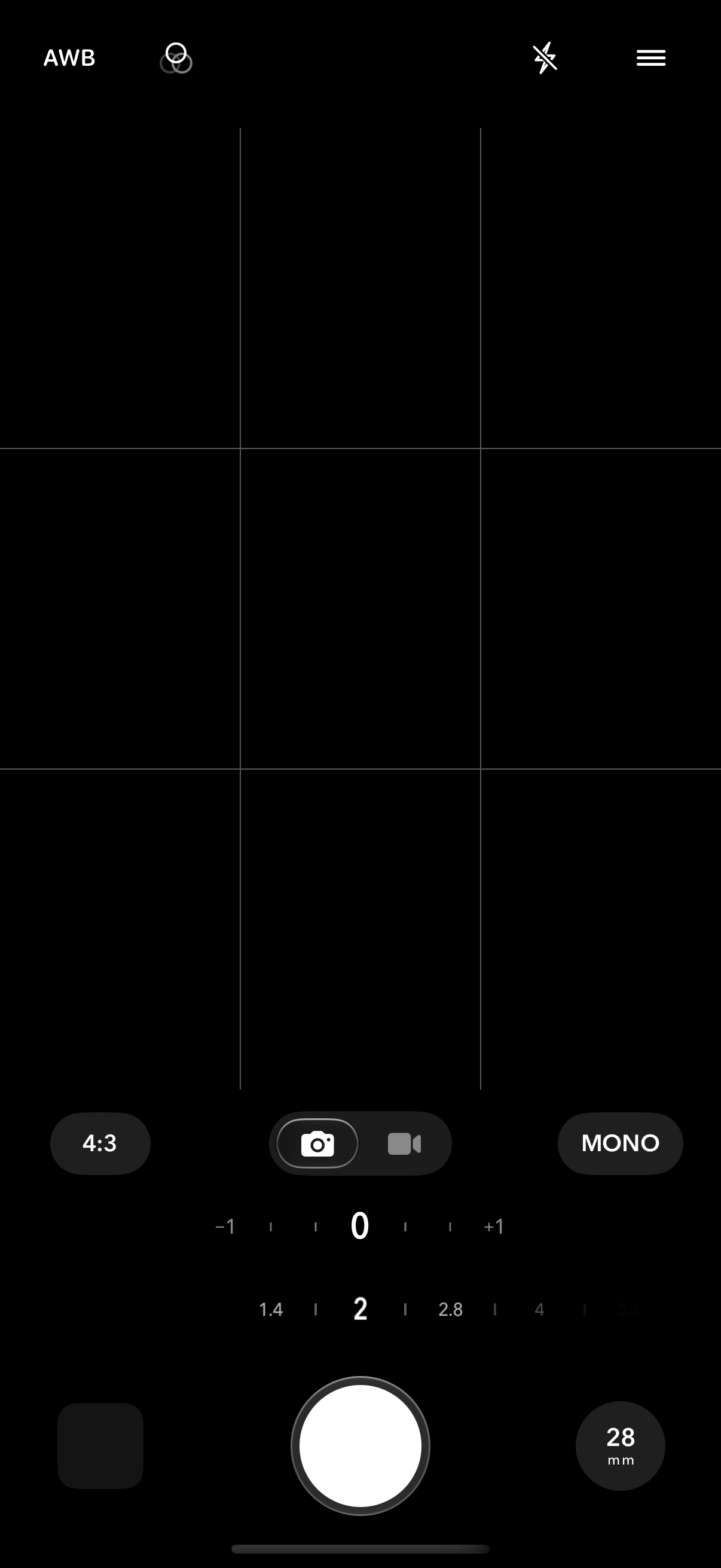
Grids
Rule of Thirds, Golden Ratio, Golden Triangles or Golden Spiral. Double-tap the viewfinder to flip the triangles or turn the spiral.
grids.jpg

Level
A horizon guide so the camera can be held straight. It works whether you hold the phone upright or sideways.
Steady Viewfinder
Steadies what the viewfinder shows on the 50 mm and longer lenses, which makes framing easier. To do it, the viewfinder crops in slightly; the photo keeps the whole frame.
Saving
| Lumar Album | Also adds what you shoot to a Lumar album in Photos. |
| Location | Saves where the photograph was made. |
| Metadata | Saves camera details with the photo. |
Video
| Video Quality | 1080p or 4K. |
| Video Frame Rate | 24, 30 or 60 fps. |
| Slo-mo | 1080p at 120 or 240 fps. |
| Time-lapse | One frame every 0.5, 1 or 2 seconds. |
| Video HDR | Off is recommended: it keeps styles looking the same as in photos. Changes apply the next time you switch to Video. |
| Link Photo & Video Style | One style shared by Photo and Video, so switching between them keeps the same look. |
| Motion Blur | Adds softer motion blur, as from a slower shutter. |
| Video Stabilization | Off, Auto, Standard, Cinematic, Extended Cinematic or Enhanced Cinematic, as your iPhone offers them. |
| Cancel All Video Renders | Deletes every video still being rendered. Finished videos are not affected. |
When Lumar Opens
| Open With | Last Used picks up where you left off. My Defaults always starts from the setup you saved. |
| Default Style, Default Aspect Ratio | The style and frame Lumar starts with. |
| Default Lens | Last Used, or a lens Lumar always opens on. |
| Save Current as My Defaults | Stores the camera as it is set now. |
Appearance
| Interface | Lumar Glass or Lumar Classic. Glass needs iOS 26 or later; on earlier versions Lumar uses Classic and this row is not shown. |
| Opacity | With Glass: how see-through the panels and the lens and style tiles are. The middle is the standard look; the slider settles there as you pass it. |
| Color / Font Theme | The colors and typeface of Lumar’s controls: Lumar, Lambda, X, Gold, Studio or Nordic. |
Reset
Reset All Settings returns Lumar to how it was when first installed. Your photos are not touched.
Troubleshooting#
The viewfinder is black
Check that Lumar has Camera access in the iPhone Settings app, under Lumar. If another app is using the camera, such as a video call, close it. If the viewfinder stays black, close Lumar from the App Switcher and open it again.
Depth Effect is grayed out
Depth Effect needs Photo mode, a Spherical lens and a rear camera. It is not available in Video, on the front camera, or with Native lenses.
I can't find Live Depth Preview
It appears only on lenses that can measure depth live, and Depth Effect must be on.
The camera feels slow, or my iPhone gets warm
Live Depth Preview takes the most processing; turn it off in Settings, under Look. Higher Resolution and Depth Resolution settings also take longer per photo. Long 4K recordings warm any iPhone.
The photo looks different from the preview
With Live Depth Preview on, the viewfinder shows a quick version of the blur. The photograph is rendered at full quality after you take it, so its edges and highlights are more refined.
Some lenses are missing
Lenses of 75 mm and longer need a telephoto camera. See Focal lengths.
There is a pause after I press the shutter
Depth Effect photos and 24 or 48 MP photos take a moment to finish. Setting Resolution or Depth Resolution to 12 MP, or turning Live Depth Preview off, makes shooting quicker.
The Action button doesn't open Lumar or take a picture
Set the Action button to the Lumar Camera control (see The Action button). On iPhones with a Camera Control, also check Shutter Button in Settings: to take pictures with the Action button it must be Action Button or Both.
A video looks different from my photos
Turn off Video HDR in Settings, under Video, so styles look the same in both. If the style itself is different, Link Photo & Video Style is off and Video has its own style.
A video has not appeared in Photos
Styled video is rendered after recording. Open Lumar and let it finish. If a render is stuck, use Cancel All Video Renders in Settings; unfinished videos are deleted.
Photos don't show where they were taken
Turn on Location in Settings, under Saving, and allow Lumar to use your location in the iPhone Settings app, under Lumar.
I can't find my photos in a Lumar album
Everything is saved to your photo library. To also collect it in a Lumar album, turn on Lumar Album in Settings, under Saving.
Reporting a problem
In Settings, under Support, tap Report an Issue. Lumar prepares a diagnostics file and attaches it to an email for you to send, with a note about what happened. Nothing is sent unless you send it. You can also write to support@lumarcamera.com. See Support.